How to Organize Passwords and Important Information

Quick question. How many passwords do you have right now? Ten? Forty? More than that? And where do they all live? In your head? On sticky notes? In an old notebook you never open?
If your answer feels messy, you are not alone. Most of us keep logins and important papers in five different places. That works fine until you forget the one password you really need. Then it becomes a bad morning.
I spent a whole weekend to organize passwords and all my important information once. It took time, but now I can find anything in seconds. You can do it too. Let me show you the exact steps.
Pick One Password Manager and Move Everything There
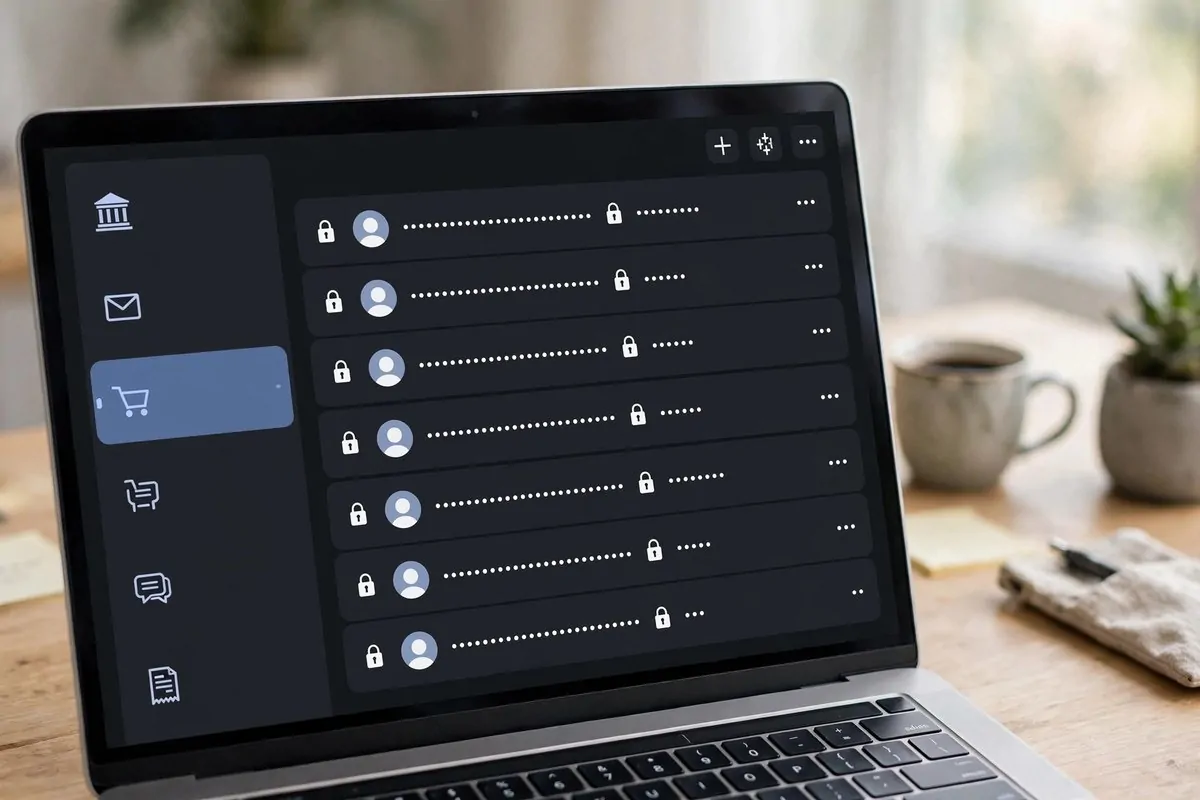
A password manager is an app that keeps all your logins in one locked vault. You remember one master password. The app remembers the rest. It fills logins for you on your phone and computer. This is the safest way to organize passwords.
First, choose one app. Bitwarden is free and very popular. There are others too. Pick the one you like and stop switching.
Next, open the app on your computer. Go through every site you use. Email first. Then bank. Then shopping. Then social media. Add each login to the vault as you go.
When you add a login, let the app make a strong new password for you. Those long random ones are best. You do not need to remember them. The app does.
Sort Your Logins Into Simple Groups
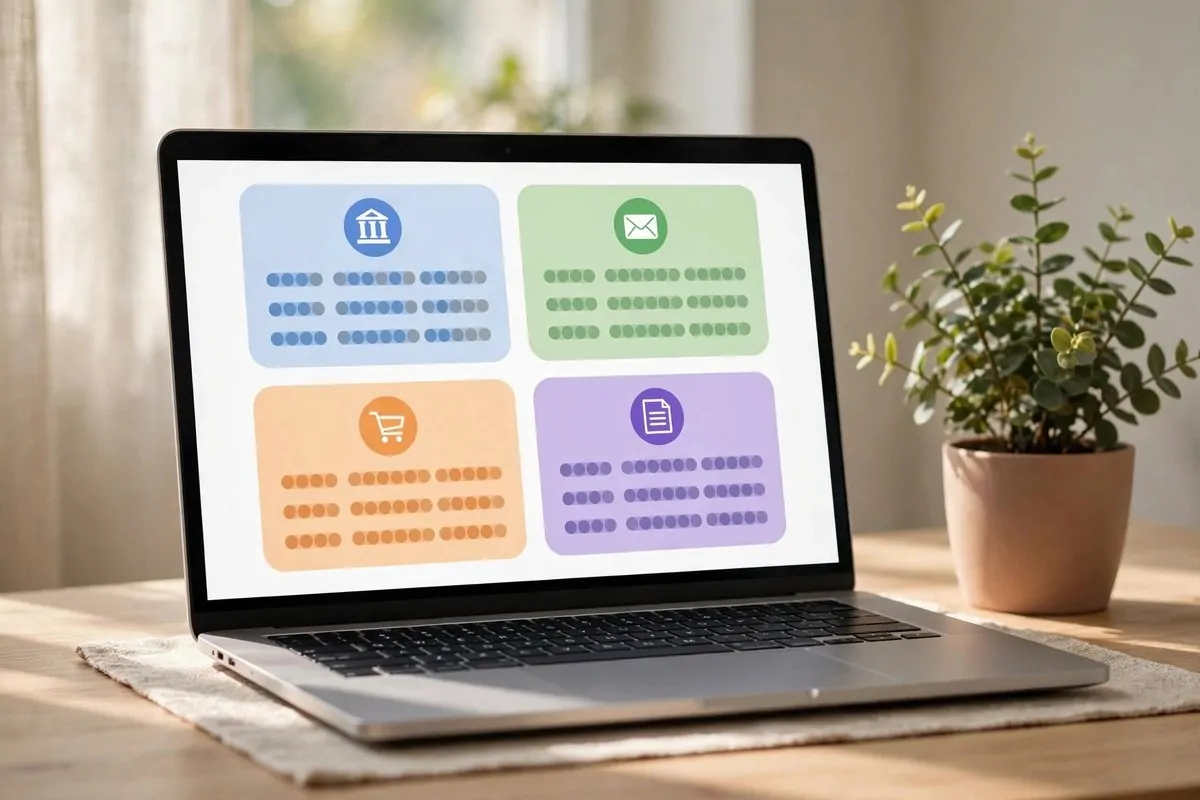
A vault with 100 random logins is still a mess. Groups fix that. Most password managers let you make folders. Make a few simple ones.
Good groups look like this: Banking, Email, Shopping, Social, Work, Bills. That is enough. Do not make 20 groups. You will never use them.
Put every login in the right group. Banking goes to Banking. Your light bill goes to Bills. This small step saves you minutes every single day.
Some apps also let you add tags. Tags are extra labels. I tag old accounts I barely use with “rare”. That way I know what to clean up later.
Write Your Master Password on Paper and Hide It Well

Your master password opens the whole vault. If you forget it, you lose everything. If someone else finds it, they get everything. So treat it with care.
Write it on paper by hand. Not in a phone note. Not in a text file named “password”. Paper.
Hide that paper somewhere safe. A drawer you rarely open. A book you keep on a shelf. Some people use a small lockbox. Pick a spot and tell no one except maybe your partner.
You only need this paper two times: when you set up a new device, or in an emergency. The rest of the time, your finger or face unlock opens the app.
Make a Master Info Sheet for Every Account

Passwords are only half of it. Accounts have other details you always need later. Customer service numbers. Account numbers. How you pay each bill. Notes from calls you made.
I keep one info sheet for each important account. On it I write the company name, account number, username, website, and the support phone number. I also add how I pay: autopay, bank transfer, or card.
Put these sheets inside your password manager as secure notes if your app allows it. Many apps do. If not, keep them in one folder on your computer. One folder. Not five.
When you call a company about a bill, write the date and what they said at the bottom. Future you will thank present you. Trust me on this one.
Put the Important Papers in a Fireproof Safe
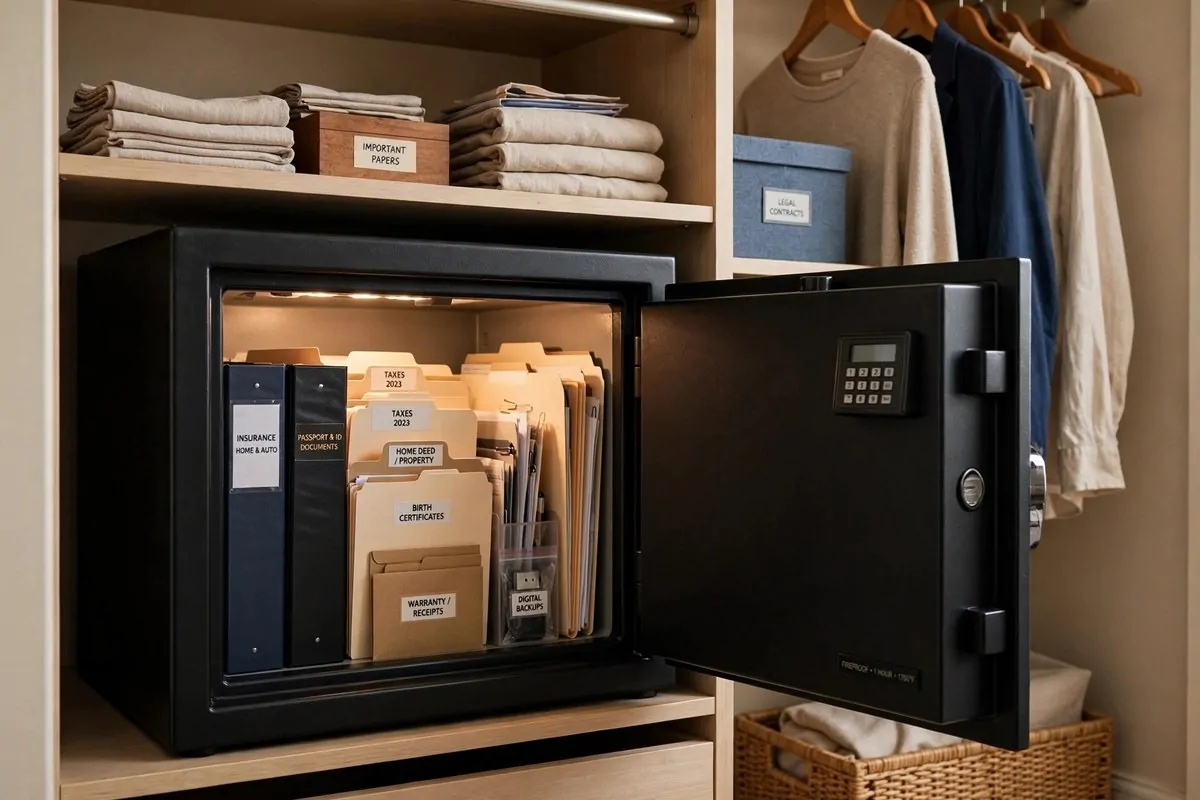
Some things still live on paper. Passports. Birth certificates. Property papers. Insurance policies. Your handwritten master password. These need a safe home.
Buy a small fireproof and waterproof safe. They are not expensive. Put all the important papers inside in clear folders. One folder for each type: ID papers, money papers, house papers, health papers.
Make copies of the most important ones. Keep the originals in the safe. Keep the copies in a second spot, like a different room. Fires and floods are rare, but being ready is cheap.
Once a year, open the safe and check everything. Old insurance cards come out. New ones go in. It takes 15 minutes. Put a reminder on your phone so you do not forget.
Give Emergency Access to Someone You Trust
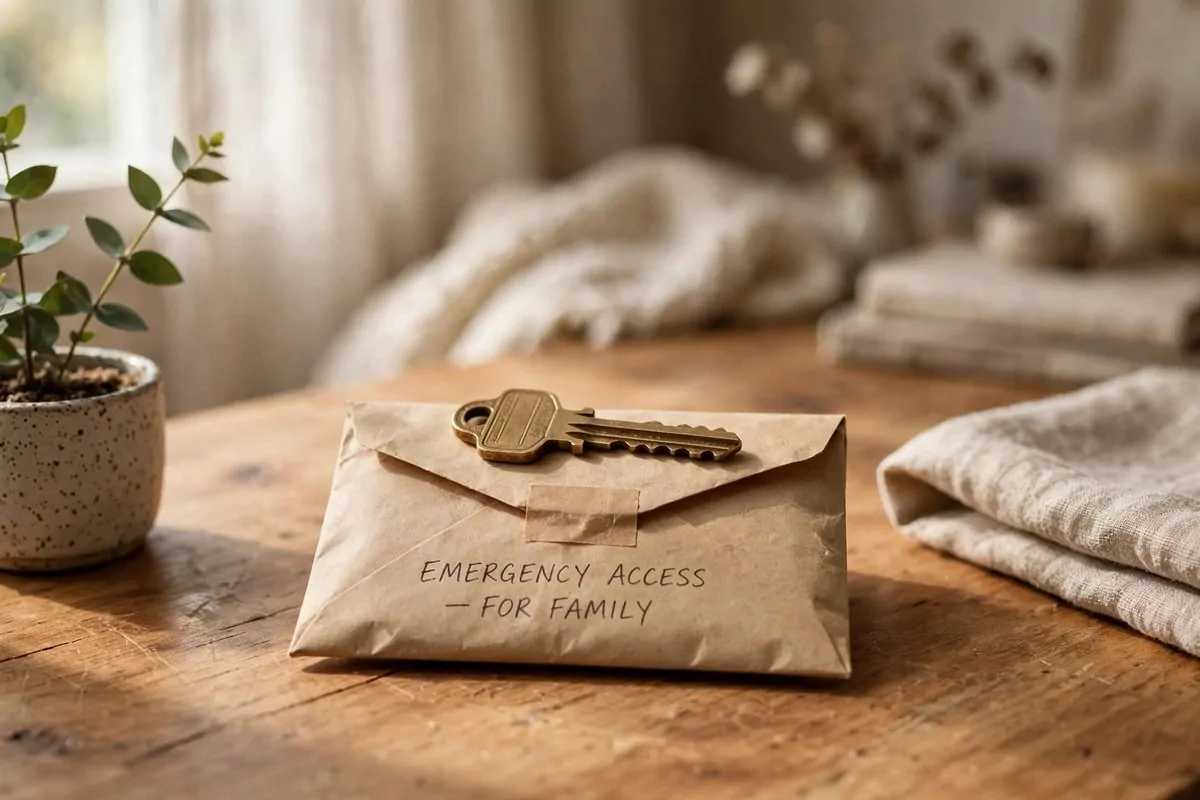
This step is the one everyone skips. Think about it. If something happened to you, could your family find your accounts? Your bank? Your insurance? Probably not.
Most password managers have an emergency access feature. You pick a trusted person. If they request access and you do not answer in a few days, they get in. Set it up. It takes 10 minutes.
Also tell that person where your safe is. And where the master password paper hides. You can write this in a sealed envelope and give it to them. Or tell them in person.
This is not a fun topic. But a little planning now saves your family a lot of pain later. Do it this weekend and feel the relief.
That is the whole system. One vault for logins. Simple groups. Paper backup for the master password. Info sheets for accounts. A safe for papers. And one trusted person who can help in an emergency.
Start with step one today. Just install the app and add three logins. The rest will follow. Your future self is already calmer.