How to Organize My Digital Life

My digital life used to look fine from the outside. My desktop had a few neat folders. My phone looked okay. But every time I needed one thing, like a PDF of my lease or a photo of my car insurance card, it took me ten minutes to find it. Sometimes I never did.
The problem was not a lack of folders. I had lots of folders. Folders inside folders inside folders. The problem was friction. Small snags that slowed me down every single day.
This is more common than you think. A 2012 report from the McKinsey Global Institute found that office workers spend about 1.8 hours a day searching for and gathering information. That is close to a fifth of a work week, just looking for stuff.
So in this post, I am not going to tell you to make the perfect folder tree. That is a trap. Instead, I will show you how to find the spots where things break down, clean up the worst of it, set up a small system that does most of the work, and keep it from getting messy again.
Audit first. Then cleanup. Then system. Then upkeep. Let’s go.
Why Digital Clutter Is Harder to Notice
When your kitchen is a mess, you see it. You trip over it. You can’t find a clean plate. The mess makes you act.
Digital mess is not like that. It hides. A full downloads folder does not take up room on your floor. 8,000 unread emails do not smell. 40 apps you never open do not block the door.
So the mess grows and grows, and you only feel it at bad times. Like when you need a file right now for a form, and you can’t find it.
There is research on this too. A team at Northumbria University in the UK, led by Nick Neave, studied what they called “digital hoarding.” In their 2019 paper, they found that email was the thing people hoarded most. People kept old emails “just in case,” or because they felt they might be useful one day.
That “just in case” thinking is at the root of most digital clutter. It costs nothing to save one more file. So we save everything. And then we can’t find anything.
Find the Places Where Your Digital Life Keeps Breaking Down
Before you clean, look. Where does it hurt?
For one week, keep a small note on your phone. Each time something digital slows you down, write it down. Just a few words.
Here is what my list looked like the first time I tried this:
- Could not find my tax PDF
- Forgot my password for the water bill site, again
- Phone full, could not take a photo
- Two versions of the same doc, not sure which is new
- Missed an email from school in a flood of ads
- Took a long time to find a recipe I saved
Look at your list. You will see a few patterns. Most people have three to five spots where things keep going wrong. Those are your friction points.
Now here is the key idea. You don’t need to organize everything. You need to fix the friction points. If your photos are a mess but you never need to find one, that can wait. If your bills keep going missing, fix that first.
Rank your friction points from most painful to least. Start at the top.
Decide What Deserves a Permanent Home
Not every file needs a home. Most of what we save is short term. But some things matter a lot, and those need a set place you can always find.
Here is my list of things that deserve a permanent home:
- ID papers: scans of your passport, ID card, and birth papers.
- Money papers: tax forms, pay slips, and big receipts.
- Home papers: lease or deed, insurance, and warranties.
- Health papers: test results, vaccine records, and doctor notes.
- Work papers: your CV, contracts, and key letters.
- Photos and memories: the ones you would cry to lose.
Make one main folder in your cloud drive. I call mine “Life.” Inside it, I have just six folders, one for each group above. That is it.
Why so few? Because more folders means more choices every time you save. More choices means more friction. With six, I know right away where a file goes.
Also think about backups for this folder. This is the stuff you can’t lose. More on that soon.
Create One Temporary Place for Unsorted Stuff
This is the trick that changed things most for me. One inbox folder.
Most of what comes into your digital life does not need to be sorted right away. A PDF you just downloaded. A screenshot. A doc someone sent. If you try to file each one the moment it arrives, you will give up in a week.
So make one folder called “Inbox” or “To Sort.” Set your browser to save downloads there. Drop anything new and unsure into it.
Then, once a week, open it and make a quick choice for each file:
- Delete it if you don’t need it anymore. This will be most files.
- File it in your “Life” folder if it is important.
- Move it to a project folder if you are using it right now.
The inbox gives you a place to be messy, on purpose. It is like a basket by the door for keys and mail. You don’t have to be neat all the time. You just have to empty the basket once a week.
Stop Saving Things You Will Never Use Again
This is the cleanup part. And it starts with a hard truth. Most of what you save, you will never open again.
Think about it. How many saved posts have you gone back to? How many “read later” links did you read later? How many old downloads have you opened twice?
I did a test on my own laptop. I sorted my downloads folder by “date last opened.” Most of the files had not been opened since the day I got them. Not once.
So here are a few rules I use now:
- If it is easy to find online again, don’t save it. A recipe from a big site? You can search for it.
- If you saved it for “someday,” set a date. If someday has not come in three months, delete it.
- Delete as you go. Done with that boarding pass? Delete it after the trip.
- Unsubscribe from one list a day. Less coming in means less to sort.
Deleting can feel scary. But most cloud drives and phones keep deleted files for a while in a trash or “recently deleted” folder. So you have a short safety net if you change your mind.
Make Important Information Easy to Find
Now we get into the system part. The goal here is speed. You want to find any key file in under a minute.
Three things make this easy:
1. Good file names. This matters more than folders. A file called “scan001.pdf” is lost forever. A file called “2026 car insurance card.pdf” is easy to find. I use this simple pattern: year, then what it is, then who it is from if needed.
2. Search, not dig. Your computer and cloud drive have great search. If your files have good names, you can just type “insurance” and find it. No digging through folders.
3. A shortcut to the top ten. Make a list of the ten files you need most often. Pin them, star them, or make a “Quick” folder with shortcuts to them. Mine has my ID scans, my lease, my insurance cards, and my CV.
Passwords are a big one too. If you keep forgetting them, a password manager is worth it. It stores all your logins in one safe spot, so you only have to remember one strong password. Many phones now have one built in.
Separate Work, Personal, and Private Information
When work and home files live in the same place, things get mixed up. A work file ends up in your photos. A bank form lands in a shared work folder. That is messy, and it can be risky.
I keep three clear zones:
| Zone | What Goes Here | Where It Lives |
|---|---|---|
| Work | Work docs, work email, work chats | Work account and work devices |
| Personal | Photos, home files, hobbies, family plans | Personal cloud drive |
| Private | ID scans, money papers, health records, passwords | Locked folder or password manager |
The private zone needs extra care. Turn on two step login for the account where it lives. Use a strong password. And don’t share that folder with anyone unless you really must.
If you use the same laptop for work and home, at least use two different user accounts or two different browser profiles. It is a small step, but it keeps the two worlds apart.
Deal With Duplicate Files and Forgotten Downloads
Duplicates are sneaky. You download a file twice. You save a copy “just in case.” You email a doc to yourself. Soon you have “report.docx,” “report (1).docx,” and “report final FINAL.docx.”
Now which one is the real one?
Here is how I clean them up:
- Sort by name. Copies often have “(1)” or “copy” in the name. They will line up next to each other.
- Sort by size. Two files with the same exact size are often the same file.
- Keep the newest. Check the date. Keep the latest one, and delete the rest.
- Use a duplicate finder. There are free apps for Windows and Mac that can find copies for you. For pictures, the Photos app on iPhone even has its own Duplicates album.
For downloads, I do one big purge. I sort the folder by date and delete everything older than three months that is not in my “Life” folder. It is scary the first time. But I have never once missed a file.
One more tip. Stop making copies to be safe. That is what backups are for.
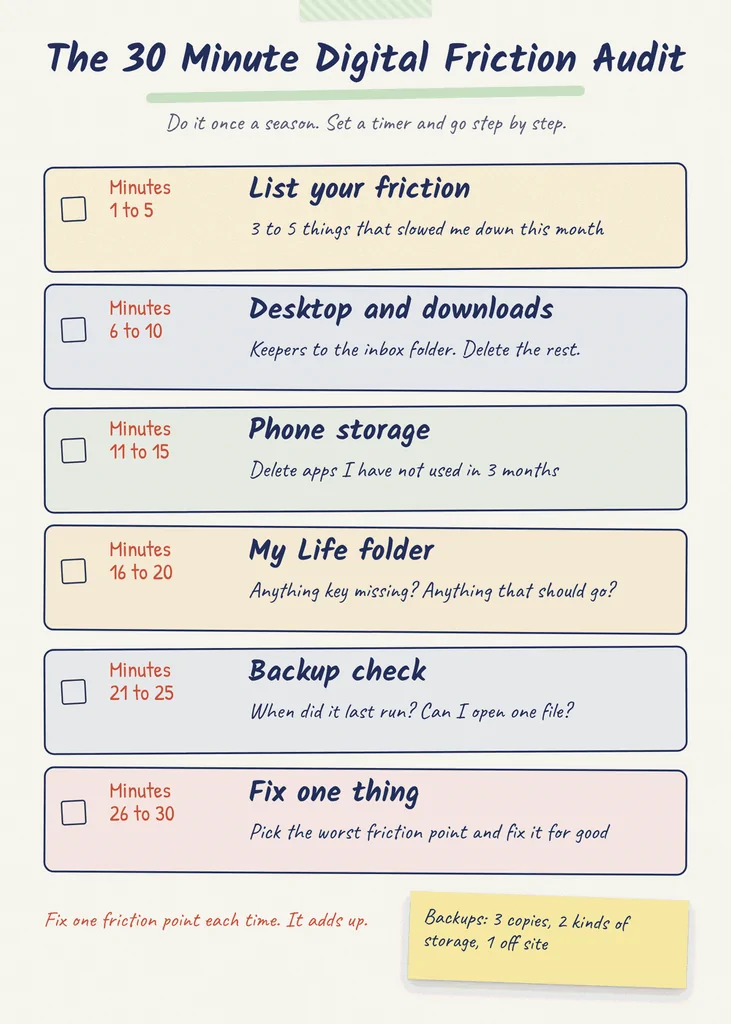
The 30 Minute Digital Friction Audit
If you want one simple thing to do this week, do this. Set a timer for 30 minutes and work through these steps. I do it once a season.
/image
Minutes 1 to 5: List your friction. Write the three to five things that slowed you down most this month.
Minutes 6 to 10: Check your desktop and downloads. Move the keepers to your inbox folder. Delete the rest.
Minutes 11 to 15: Check your phone storage. Look at which apps and files take up the most space. Delete apps you have not used in three months.
Minutes 16 to 20: Check your “Life” folder. Is anything key missing? Is anything there that should not be?
Minutes 21 to 25: Check your backup. When did it last run? Can you open one file from it?
Minutes 26 to 30: Fix one friction point. Pick the worst one from your list and fix it for good.
That last step is the most important. Each audit, you remove one source of daily pain. Over a year, that adds up to a much calmer digital life.
About backups: this is where most of us are weak. In the 2024 Backblaze survey, done with The Harris Poll, 74 percent of computer owners in the US said they had accidentally deleted important data. Yet only 15 percent felt fully sure their key files were safely backed up. And only 10 percent backed up all their data daily.
The US Cybersecurity and Infrastructure Security Agency (CISA) suggests the 3 2 1 rule. Keep three copies of your key data, on two different types of storage, with one copy off site. For most people, that means your device, an external drive, and a cloud backup.
What Doesn’t Need to Be Organized at All
This part is a relief. Some stuff does not need any system.
- Old emails you can search. You don’t need to file every email. Search works fine.
- Files you will delete soon. Tickets, short term notes, one time forms. Just leave them in the inbox and delete them later.
- Music and movies on streaming apps. They are already organized for you.
- Old projects that are done. Put them in one “Archive” folder and stop thinking about them.
- Most photos. The photo app can search by face, place, and thing. You don’t need a perfect album for each.
It is easy to think a good system means everything is in its place. But a good system means the things you need are easy to find. That is a much smaller job.
Spend your energy on the friction points. Let the rest be a bit messy. You have a life to live.
Prevent the Same Mess From Coming Back
Cleanup is great. But if the habits don’t change, the mess comes back in a month. Here are the small habits that keep mine away.
- Name files when you save them. Take five seconds to give it a real name. Future you will thank you.
- Save to the inbox, not the desktop. The desktop is not a storage spot.
- Turn on auto backup. Set it once, and let it run.
- Think before you download. Ask, “Will I open this more than once?”
- Close the loop. When a project ends, move its folder to the archive that same day.
Also, try to make your tools do the work. Set your email to filter ads into a separate tab. Set your photos to back up on their own. Set your downloads to land in the inbox folder.
The less you have to remember, the better your system works.
Your Monthly Digital Reset
Once a month, I spend 15 minutes on a quick reset. Not a big clean. Just a check in. Here is my list:
- Empty the inbox folder.
- Clear the desktop.
- Delete downloads older than a month.
- Check that the backup ran.
- Delete five apps or unsubscribe from five email lists.
- Update any key file that changed, like a new insurance card.
I put it in my calendar on the first Sunday of each month. It repeats on its own, so I don’t have to remember.
That is the whole system. Audit to find friction. Clean the worst of it. Set up a few simple homes and one inbox. Then reset once a month. It is not perfect, and it does not need to be. It just needs to make your days a bit smoother.
FAQs
Where should I start organizing my digital life?
Start with what causes you the most pain. Keep a list for one week of every time something digital slows you down. Then fix the top item first. For most people, that is lost files, forgotten passwords, or a full phone.
How many folders should I have?
Fewer than you think. One main folder with five to seven folders inside is plenty for most people. Good file names and search will do more for you than a big folder tree.
Is it safe to keep important papers in the cloud?
It can be, if you take care. Use a strong password and two step login on that account. Keep a second backup on an external drive, too, so you are not relying on one place.
How often should I clean up my files?
Empty your inbox folder once a week. Do a 15 minute reset once a month. And do the 30 minute audit once a season, about every three months.
What is the 3 2 1 backup rule?
It means three copies of your key data, on two kinds of storage, with one copy kept off site. CISA, the US cyber safety agency, recommends it. For home use, that is often your device, an external drive, and a cloud backup.