16 Live Studio Design Setups for Smooth Streams

A live stream has no undo button. When the light flickers, when the sound buzzes, when the frame freezes, your viewers watch it happen in real time.
That is what makes live streaming scary. It is also what makes it special. People show up because it is real, and they stay because it feels like sitting in the room with you.
A recorded video lets you fix your mistakes after. A live stream asks you to fix them before. That sounds harder, but it is really just a different kind of work. Most of it happens before you ever press the go live button.
The good news is that smooth streams are mostly setup, not talent. A steady connection, a quiet room, a light that does not flicker, a camera at the right height. None of that needs a big budget. It needs a little planning and a corner of your home that is ready to go.
I learned this the slow way, one frozen frame at a time. My first streams dropped, buzzed, and went dark at the worst moments. Each fix was small. Each fix stayed. Now the setup does the hard work, and I just show up and talk.
Here are 16 live studio design setups for smooth streams. Each one removes one thing that can go wrong. Build them one at a time, and your next live show will feel calm from the first minute to the last.
1. The Wired Connection That Beats Wi-Fi
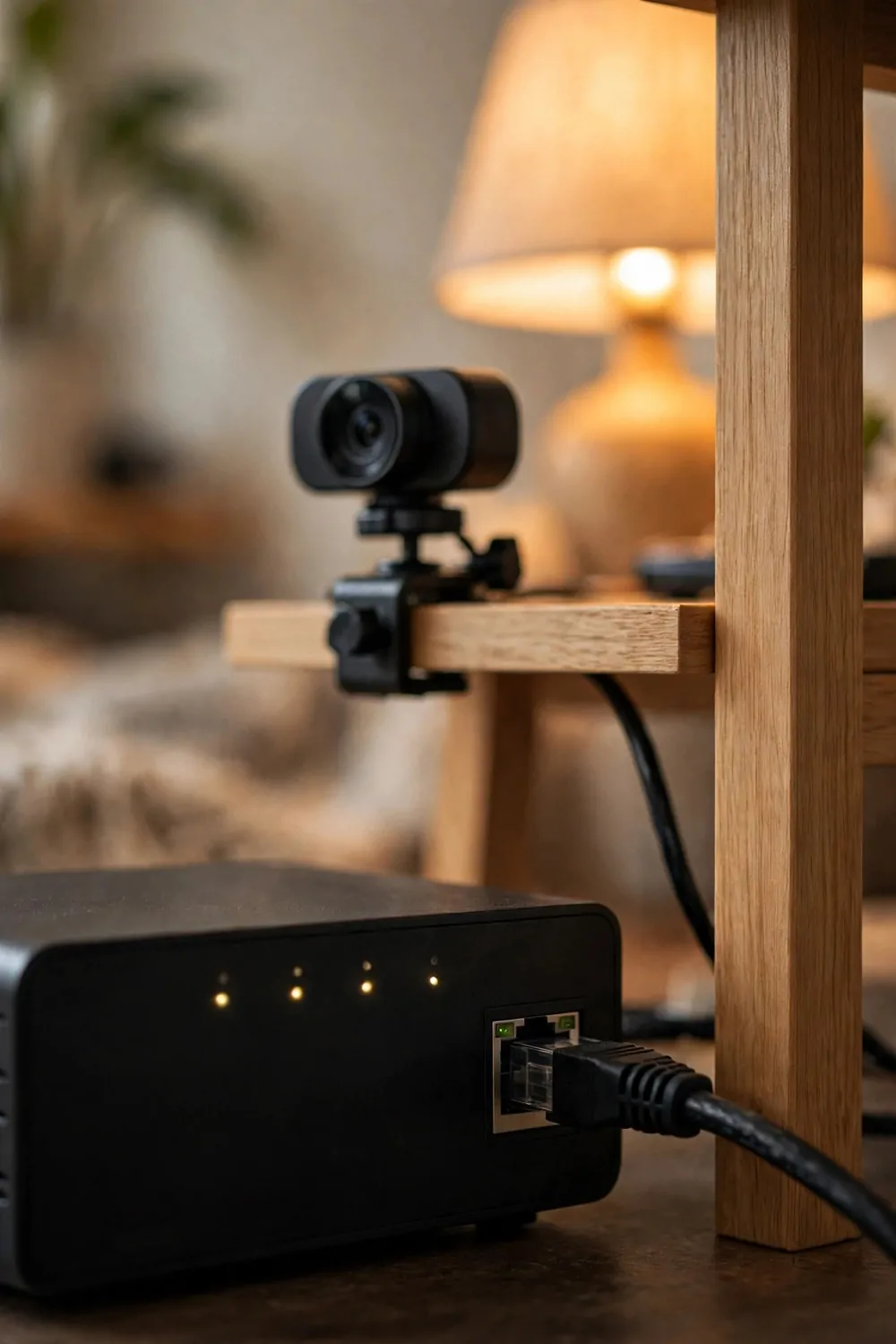
Wi-Fi is fine for watching videos. It is not fine for sending one. Your stream goes up from your house to the internet, and Wi-Fi drops little pieces of it along the way.
A wired connection fixes that. One ethernet cable from your router to your computer, and your upload steadies out. The picture stops freezing. The sound stops cutting out. Viewers stop typing “lag?” in the chat.
Run the cable along the wall, not across the floor. A cable across the floor gets kicked, tripped over, and unplugged at the worst moment. A cable along the skirting board stays put for months.
Here is how the common connection types compare for live streaming:
| Connection type | How steady it feels | Best for |
|---|---|---|
| Ethernet cable | Very steady | Every live stream |
| Wi-Fi close to the router | Fairly steady | Short casual streams |
| Wi-Fi far from the router | Drops often | Watching, not streaming |
| Phone hotspot | Unsteady | Emergencies only |
Buy a cable a little longer than you think you need. A cable pulled tight puts stress on the port, and a stressed port fails one day without warning. A little slack is cheap insurance.
Test your upload speed with the cable plugged in. Do it at the same time of day you plan to stream. Evenings are busier, and the number you see at noon is not the number you get at eight.
Keep the router in the open, not inside a cupboard. Routers get hot, and heat makes them slow down. A router on a shelf with air around it runs better than one buried behind books.
If your desk is far from the router, a powerline adapter can carry the signal through your house wiring. It is not as good as a long cable, but it beats Wi-Fi through three walls.
Plug the cable in before you open your streaming software. Some programs grab the Wi-Fi connection at startup and never switch over. Cable first, software second, and you start on the steady link.
One cable changed my streams more than any new camera ever did. It is boring, it is cheap, and it works every single time.
2. The Second Screen That Holds Your Chat
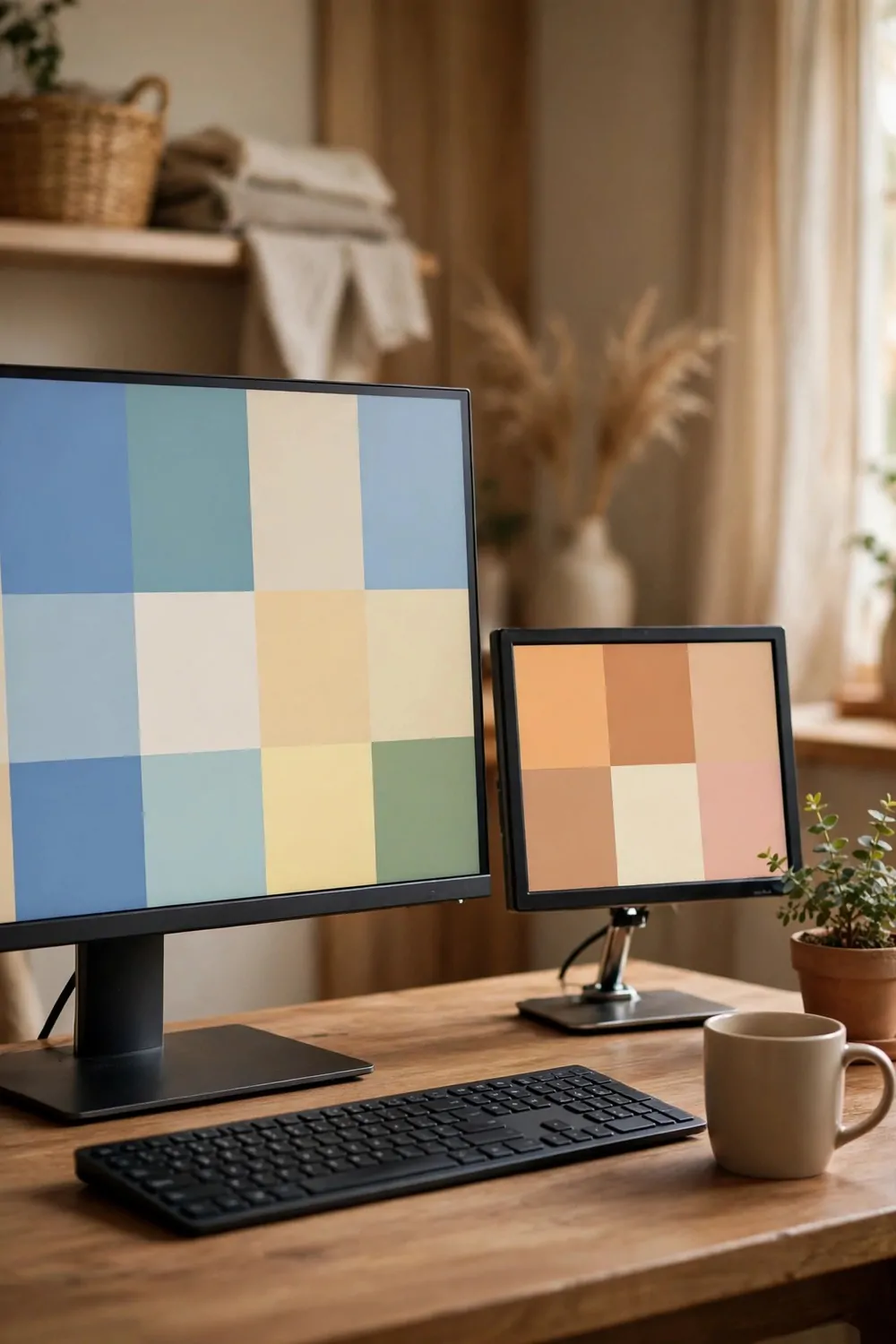
Reading chat on the same screen you stream from is a juggling act. You click the wrong window, the game or slides vanish, and your viewers watch your desktop for ten awkward seconds.
A second screen fixes that. A small cheap monitor, even an old one, holds your chat, your stream health, and your notes. Your main screen stays clean, and your viewers only ever see what you meant to show them.
Put the second screen to one side, angled toward you. You want to glance at it, not turn your whole head. A quick eye flick reads a chat message. A full head turn looks like you left the room.
Here is what lives on my second screen during every stream:
- The live chat, big enough to read at a glance
- The stream health panel, so I see a drop before chat does
- A small notepad with the names and links I plan to mention
- The clock, because live shows eat time faster than you think
Keep the second screen dimmer than the main one. A bright second screen throws light on the side of your face and fights your key light. Dim it until it is readable and no brighter.
Close everything else on that screen before you go live. A message popping up on the second screen is fine, because viewers never see it. But a loud notification sound still reaches your mic, so mute the second screen too.
An old laptop can serve as a second screen in a pinch. Stand it beside your desk, open the chat page, and you have a chat monitor for zero money. It does not need to be fast. It just needs to show words.
The second screen is really about calm. When chat has its own home, you stop hunting for windows, and your main screen stays exactly where you left it.
3. The Key Light That Never Flickers on Camera
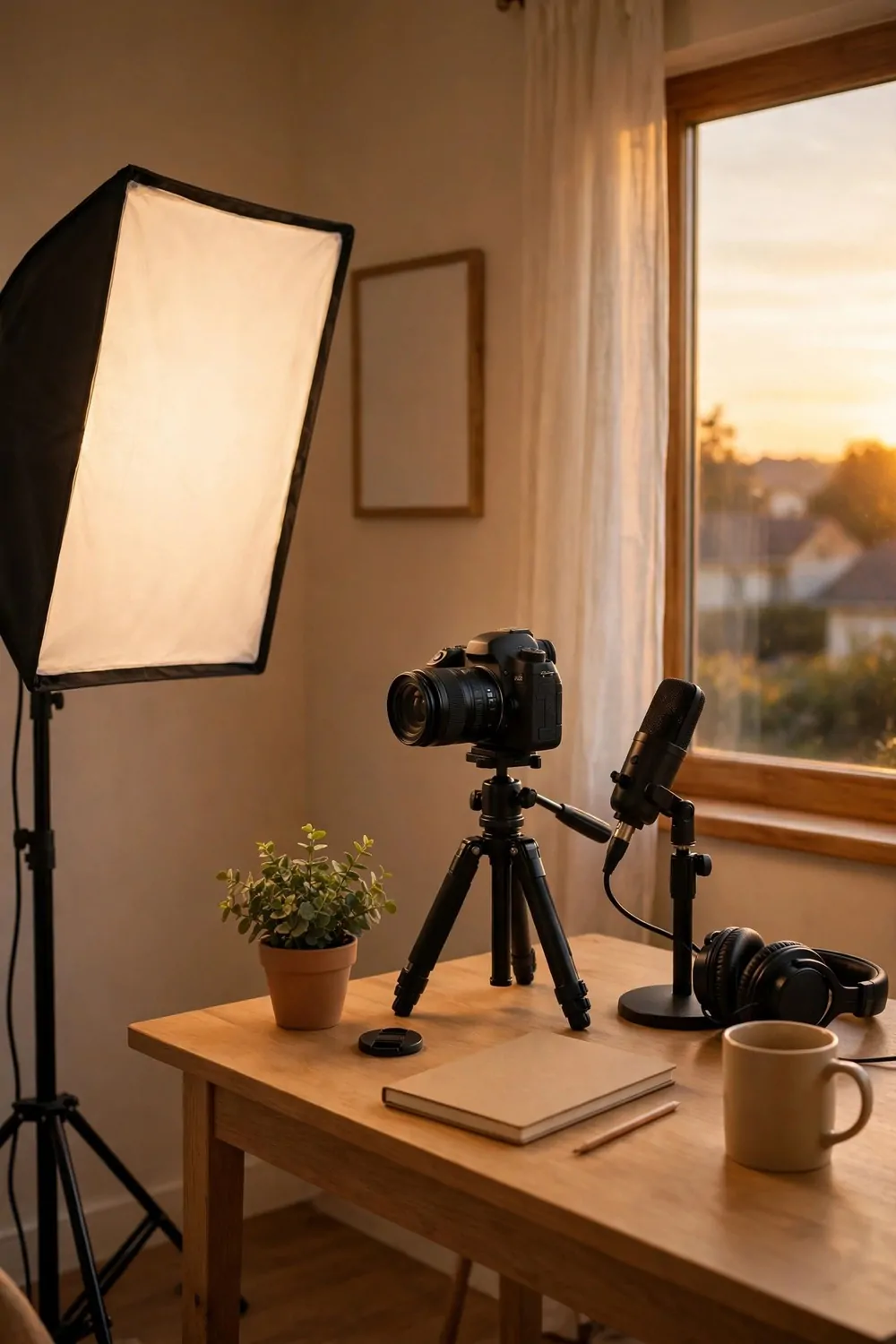
Some lights look fine to your eyes and terrible to your camera. They flicker too fast to see, but the camera catches it, and your face pulses like a slow strobe. Viewers feel it even when they cannot name it.
A good key light solves that. Look for a light made for video, not just a desk lamp. Video lights are built to stay steady on camera, and the difference shows up in the first ten seconds of your stream.
Put the key light in front of you, a little to one side, at about face height. Light straight from the front flattens your face. Light from one side gives it shape, and shape looks real on camera.
Keep the light a little farther away than you think. A light right beside your face makes one cheek too bright and the other too dark. Two or three feet back, and the light spreads out and softens.
Set the color warm, around the same warmth as your room lamps. A cool white key light over a warm room makes your face look gray while the room glows orange. Matching warmth keeps you looking like you belong in your own room.
Check for flicker before your first stream with the new light. Record ten seconds, play it back, and watch your face and the wall behind you. If anything pulses, the light is wrong, and no setting will save it.
Dim the light a touch below full power. Full power washes out skin and makes eyes look glassy on camera. Three quarters power is the sweet spot in most rooms, and your eyes will thank you after a long stream.
A steady key light is the one piece of gear worth spending a little more on. Everything else in this list is cheap. The light is the face your viewers see, and it should never flicker.
4. The Backdrop That Reads Well at 720p
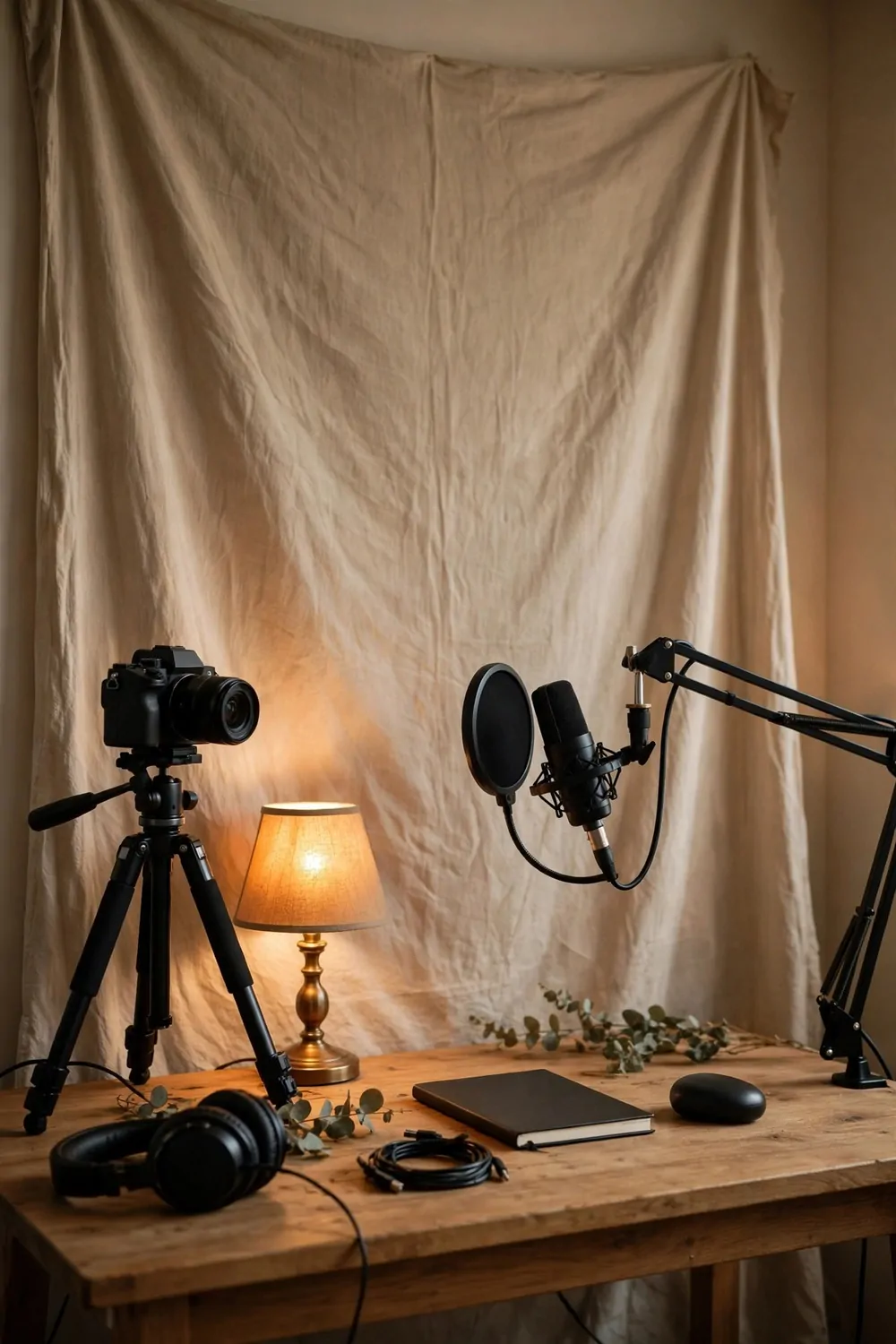
Most viewers watch streams on phones, and many watch at lower quality. Fine details vanish. Busy shelves turn to mush. A backdrop that looks rich in your room can look like clutter on a small screen.
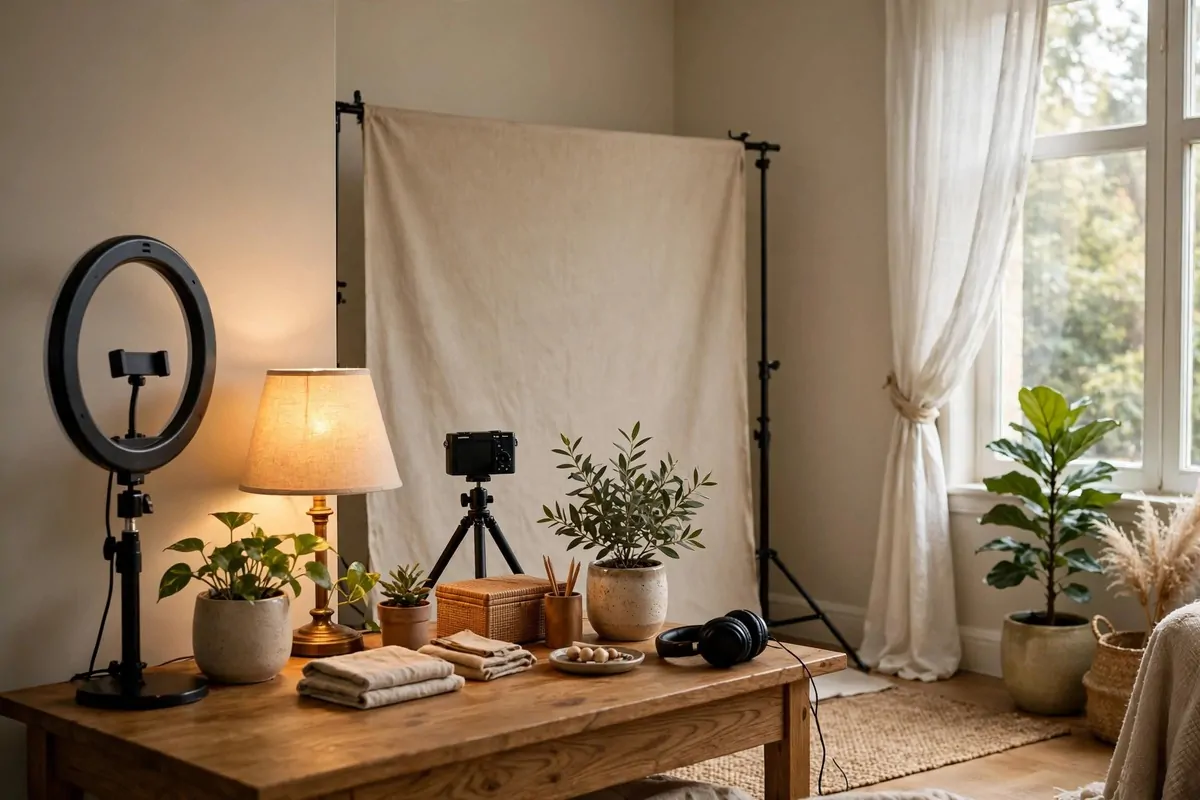
Keep the backdrop simple and bold. One curtain, one shelf with three objects, one plant. Big shapes read well at any size. Ten small objects blur into noise.
Pick one color that repeats. A warm beige curtain, a wooden shelf, a green plant. When the colors in the frame agree with each other, the whole shot feels calm, even on a tiny screen.
Sit a little farther from the backdrop than you normally would. Distance softens the background and keeps the camera focused on you. Two feet of air between you and the wall makes a real difference.
Watch out for bright windows behind you. A window in the frame turns you into a dark shape, and no camera setting fixes that on a live stream. Close the curtain, or sit facing the window instead.
Keep the backdrop still. A curtain that moves in a draft, a plant swaying by a vent, a clock with a loud tick. Movement behind you pulls eyes away from your face, and viewers miss what you said.
Test the backdrop with your phone camera before you stream. Hold the phone where your viewers sit, at arm’s length, and look at the frame. If you can read the backdrop in that small preview, it will read fine for everyone.
A simple backdrop is not a boring backdrop. It is a backdrop that lets your face and your words do the work, and that is what a live stream is for.
5. The Mic That Stays Out of the Frame
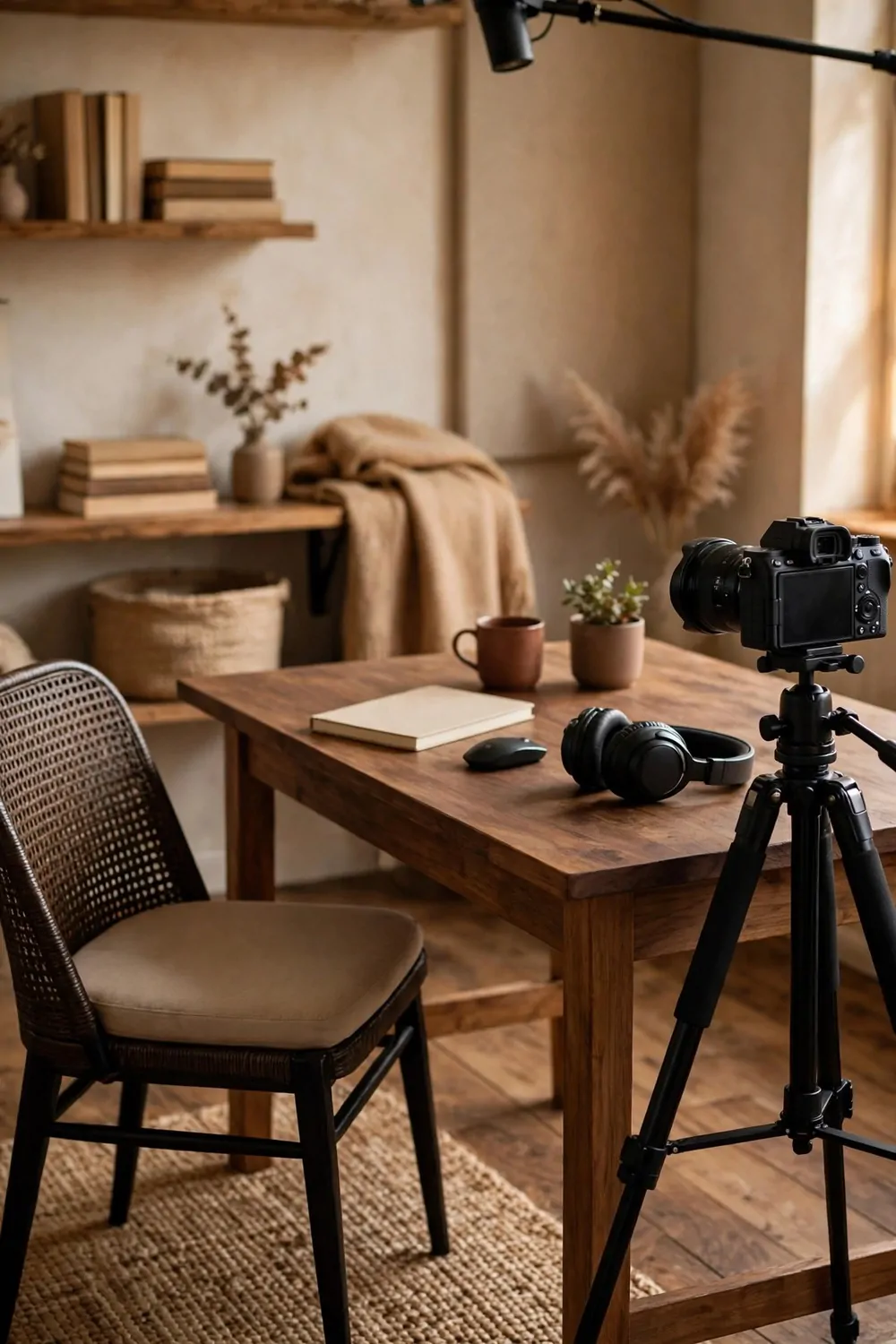
A big microphone in the middle of the frame is a wall between you and your viewers. They see the mic before they see your face, and the whole stream feels like a radio show with a picture attached.
Move the mic low and close. A boom arm lets the mic hang just below the frame, close to your mouth but out of the picture. Your viewers hear you clearly and see all of your face.
Angle the mic a little to one side, pointing at your mouth from below. Sound travels in a straight line, and a mic that points at your chin hears you fine. A mic that points at your chest hears the room more than it hears you.
Keep the mic a fist away from your mouth. Closer than that and every breath pops. Farther than that and the room sound creeps in, and your voice sounds distant and thin.
Use a pop filter or a foam cover if you have one. P sounds and B sounds push bursts of air, and those bursts thump on a live stream. A thin screen softens them, and your audio stays smooth.
Watch the mic shadow. A boom arm can cast a line across your face if the key light sits on the same side. Move the light or the arm a few inches, and the shadow falls somewhere harmless.
Tape the mic cable to the boom arm with a couple of small ties. A cable that dangles into the frame looks messy, and a cable that swings makes noise when it brushes the desk. Tidy cables are quiet cables.
When the mic disappears from the frame, the stream feels like a conversation instead of a broadcast. Your viewers forget the gear, and they just listen to you.
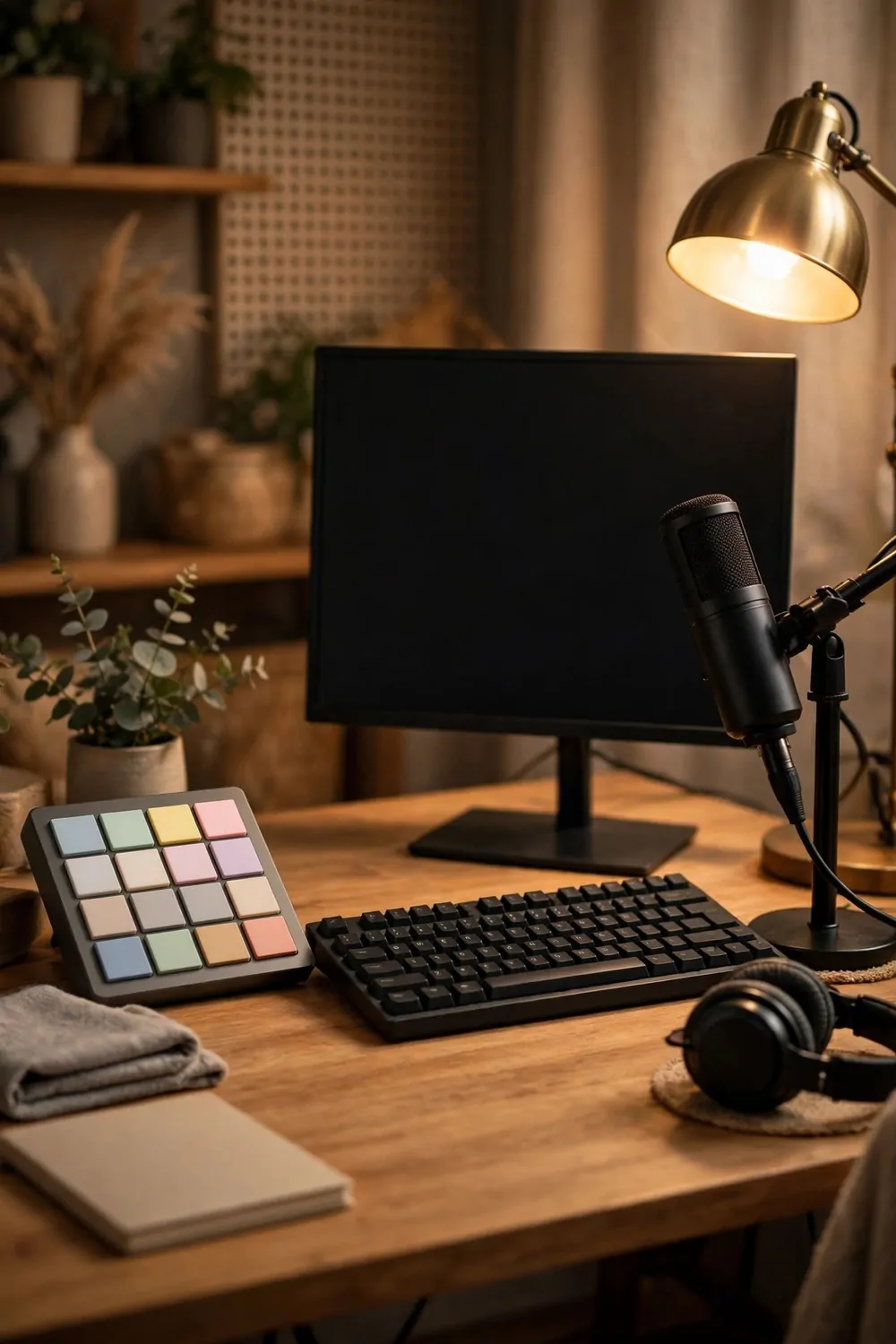
6. The Stream Deck You Build From a Cheap Keypad
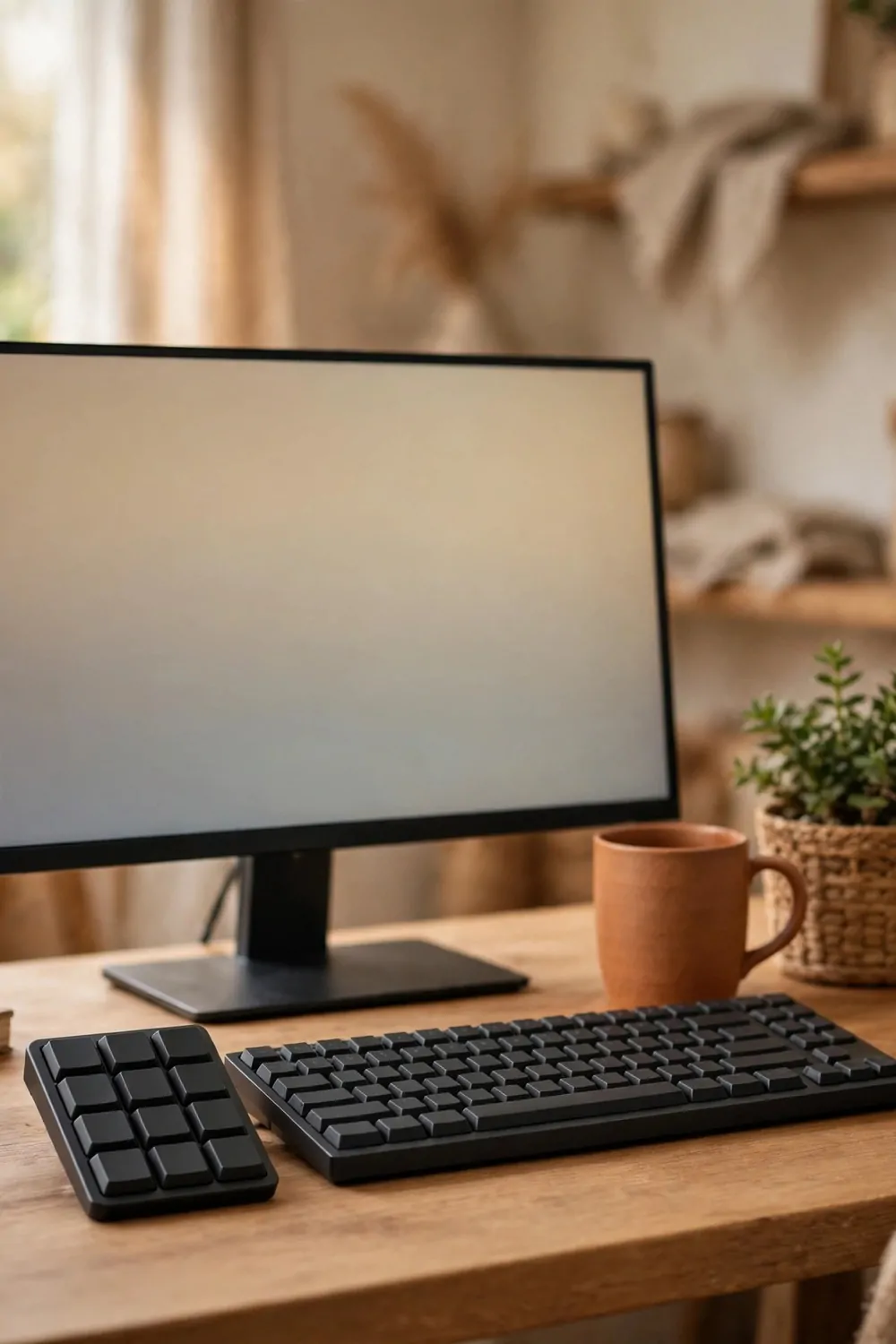
Switching scenes with a mouse is slow and risky. You hunt for the right button, you click the wrong window, and your viewers watch your desktop while you fumble. A little keypad fixes all of that.
A cheap macro keypad is a small board with blank keys you can program. Each key does one job. One key switches to your main camera. One key mutes your mic. One key shows your slides. Your hand learns the keys, and switching becomes instant.
Here is the button layout I started with, and it still covers most streams:
| Key | Job on my streams | Why it earns its key |
|---|---|---|
| Top left | Main camera scene | Used the most |
| Top right | Slides or screen share | Second most used |
| Middle left | Mute and unmute mic | Saves every cough |
| Middle right | Show the “be right back” screen | Covers every surprise |
| Bottom row | Start and stop recording | One press, no hunting |
Put the keypad where your hand rests naturally, usually just left of the keyboard. You want to hit keys without looking down. If you have to search for it, it is in the wrong spot.
Label the keys with plain colored dots, not words. A red dot for mute, a green dot for live, a yellow dot for the break screen. Colors read at a glance, and they never need updating when you change what a key does.
Practice the keys before your first live show. Run a test stream and switch scenes ten times until your fingers know the way. Live is the wrong time to learn a new button.
Keep one key as a panic button. Mine cuts to a calm holding screen with soft music. When anything goes wrong, one press buys me time, and viewers see a tidy screen instead of a mess.
A keypad is not fancy gear. It is a few blank keys and a little patience. But it turns scene switching from a risk into a habit, and habits are what keep a stream smooth.
7. The Power Backup That Saves a Live Show
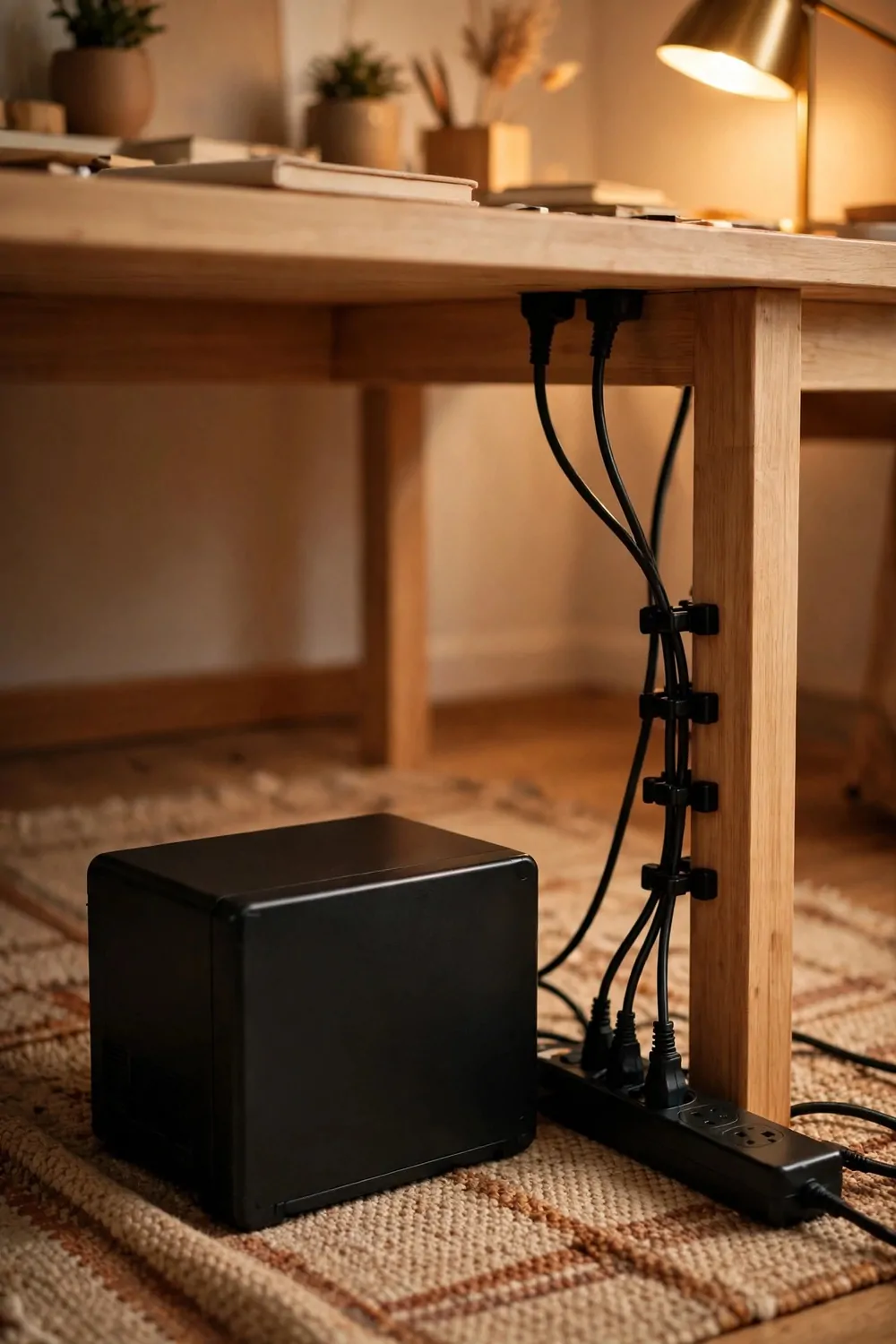
Power cuts are rare. When one hits mid-stream, it ends the show, and your viewers watch you vanish without a word. A small battery backup keeps you on air through the short cuts that matter.
A UPS is a box that sits under your desk and holds power for your computer and router. When the mains power blinks, the UPS carries you through. A ten second cut becomes nothing at all. A five minute cut becomes a calm goodbye instead of a crash.
Plug only the essentials into the UPS. Your computer, your router, and your monitor. A heater or a big lamp will drain the battery in seconds and help nobody. The essentials stay up, and that is enough.
Keep the UPS on the floor, not on the desk. It is heavy, it hums a little, and it needs air around it. Under the desk, against the wall, with its vents clear, is the right home for it.
Test it once a month. Unplug the UPS from the wall while your computer runs, and watch what happens. If the computer stays on, the battery is healthy. If it dies at once, the battery needs replacing before it matters.
Charge your phone from a different socket, not the UPS. Phones sip power, but every bit of battery is for the computer and the router. Your phone has its own battery, and it will survive a short cut just fine.
Tell your viewers your plan before you need it. A quick line at the start of a long stream, saying you will be right back if the power blinks, turns a disaster into a small pause. People are kind when they know what is happening.
A UPS is insurance you hope never to use. But the first time the lights flicker and your stream stays up, you will never run a live show without one again.
8. The Quiet Room Rule for Live Audio
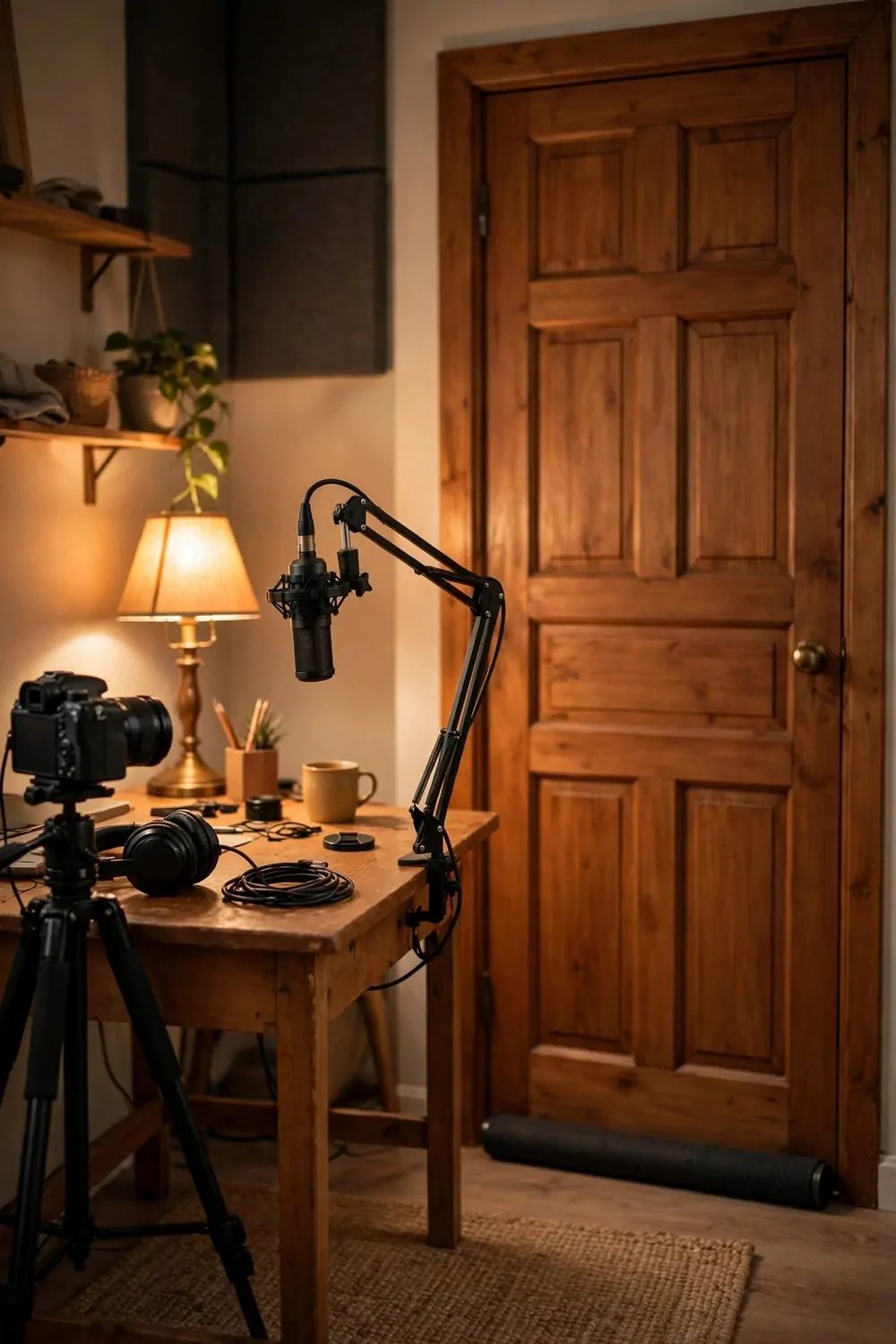
Live audio has no editing. Every hum, every bark, every washing machine spin cycle goes straight to your viewers, and you cannot take it back. A quiet room is the cheapest audio upgrade there is.
Pick the quietest room in the house for your streams. Not the biggest room, not the prettiest room, the quietest one. The room farthest from the street and the kitchen wins almost every time.
Close the door, and seal the gap under it. Most house noise walks in through that thin strip of air. A draft stopper or a rolled towel along the bottom cuts it down a lot, and it costs almost nothing.
Switch off the noisy things before you go live. The fan, the air purifier, the fridge if it hums loud, the washing machine. Two minutes of switching off saves an hour of buzzing audio.
Tell the house you are live. A sign on the door, a message in the family chat, a quick word before you start. People are happy to stay quiet when they know. They just need to know, and they need to know when you will be done.
Soft things in the room help twice over. A rug under the desk, curtains on the window, a bookshelf behind you. They soak up echo and they make the room look warm on camera. Hard bare rooms sound hollow, and viewers hear it at once.
Listen to the room with headphones before every stream. Record ten seconds of silence and play it back. If you hear a hum, find it now. A hum you catch in ten seconds never reaches a single viewer.
Quiet is a habit, not a purchase. The same room, the same gear, and a closed door is the difference between a stream that sounds like a studio and one that sounds like a kitchen.
9. The Camera Height That Looks Like Eye Contact
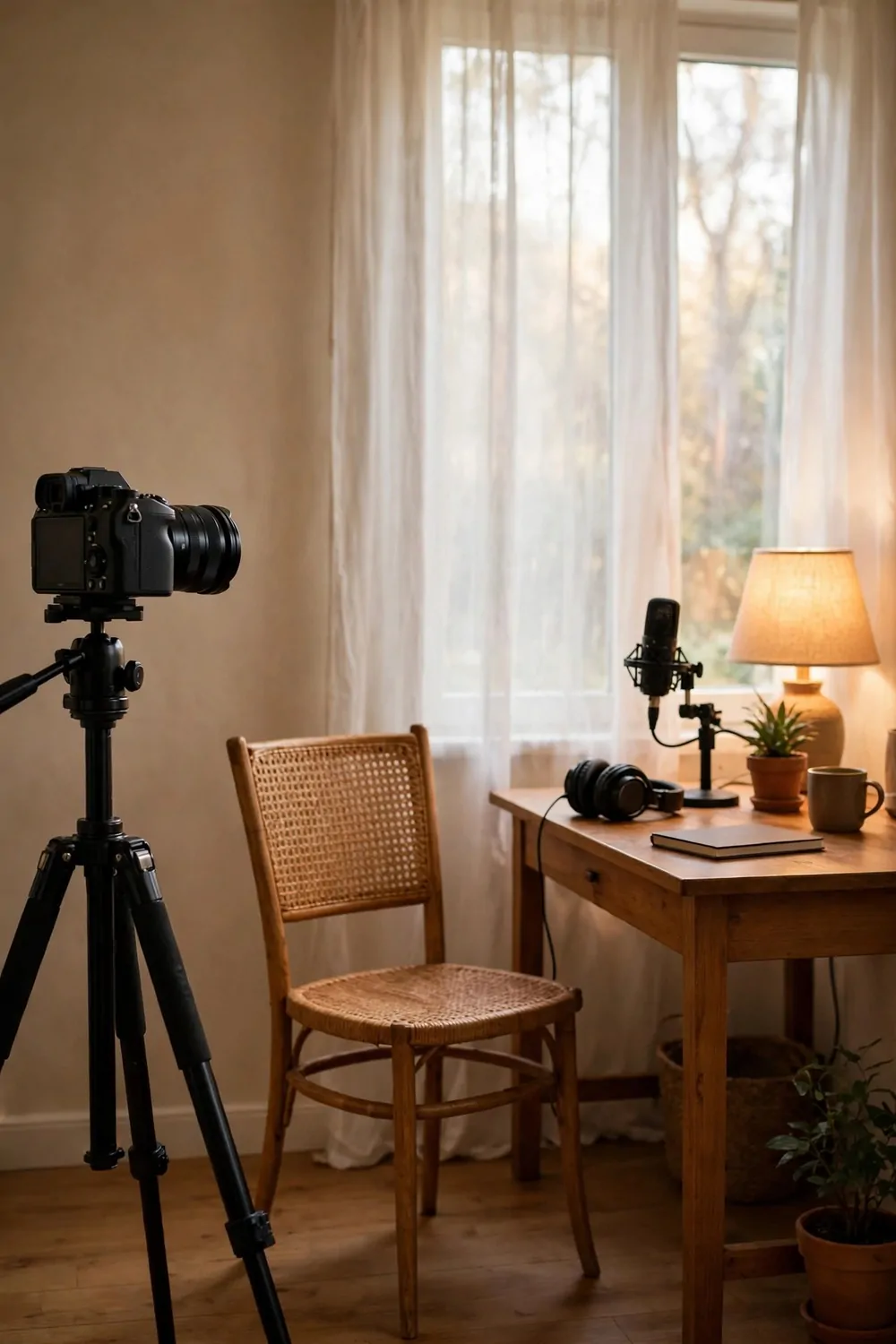
A camera that looks up at you from below makes you look distant and a little scary. A camera that looks down at you makes you look small. A camera at eye level makes you look like a person talking to a friend.
Set the camera so the lens sits level with your eyes when you sit normally. Not when you sit up straight for a photo, when you sit the way you actually sit for an hour. That is the height your viewers should meet.
Use a tripod, not a stack of books. Books slip, wobble, and slowly sink through a long stream. A tripod locks at one height and stays there, show after show, and you stop thinking about it.
Look into the lens, not at your own face on the screen. It feels strange at first, like talking to a dot. But your viewers feel the difference at once. Eyes on the lens reads as eye contact. Eyes on the screen reads as looking away.
Put a small sticker beside the lens if you keep drifting. A bright dot next to the camera gives your eyes a place to land. It sounds silly, and it works, and nobody on the stream ever sees it.
Leave a little air above your head in the frame. A head touching the top edge feels cramped, and a head with a hand of space above it feels calm. Check the frame once, then trust the tripod to hold it.
Sit back a little from the camera. Too close and your face fills the whole frame, and every small move looks huge. An arm and a half of distance is a good starting point for most rooms.
Eye level is a small adjustment with a big payoff. When the lens meets your eyes, your viewers feel like you are talking to them, and that feeling is the whole point of going live.
10. The Test Stream Nobody Sees
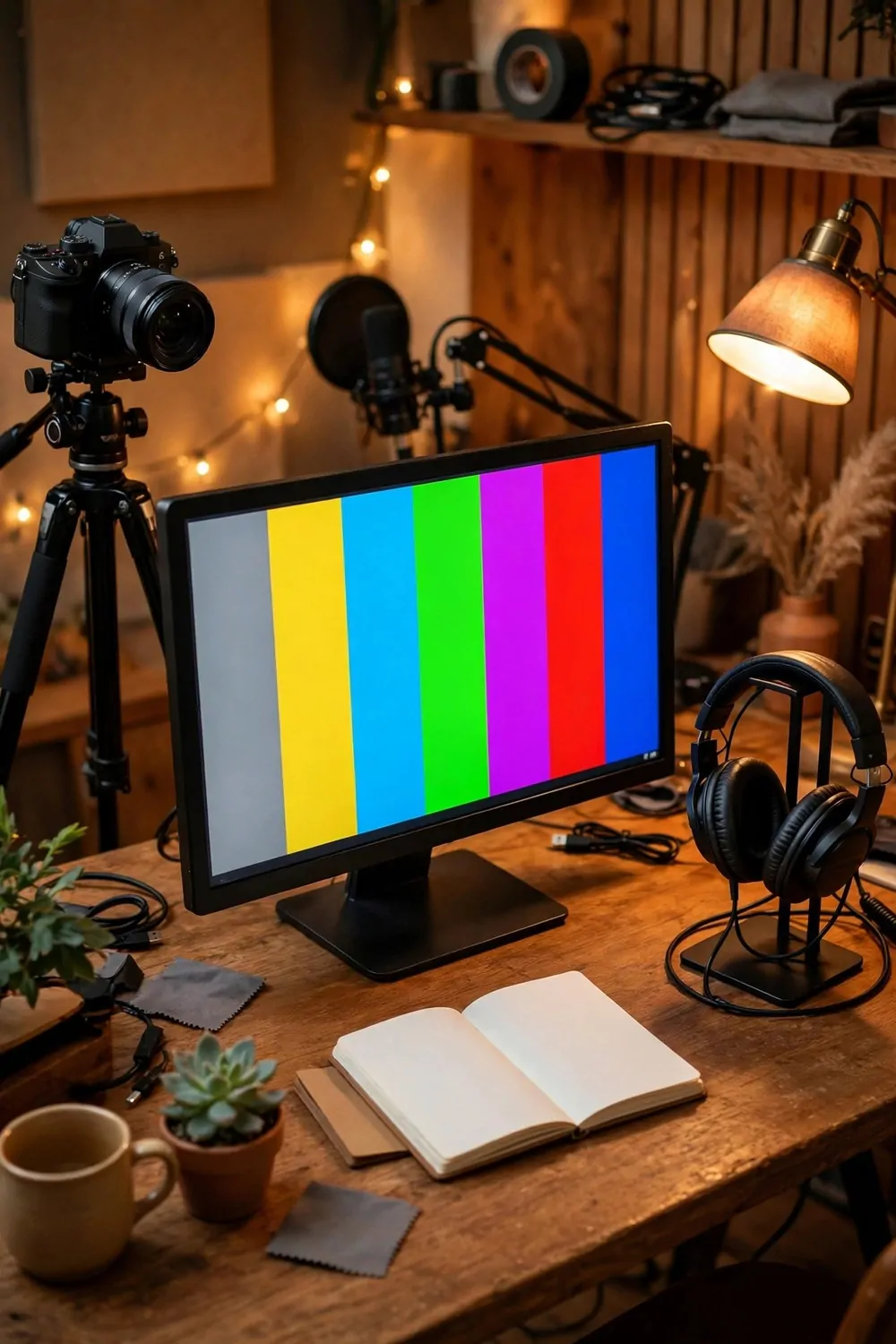
Never go live cold. A private test stream catches every problem before a single viewer sees it, and it takes five minutes. It is the best habit in this whole list.
Set your stream to private, or stream to a second account nobody follows. Run the full show for five minutes. Talk, switch scenes, play your intro, read a chat message from your phone. Do it all for real.
Here is my test stream checklist, in order:
- Picture is sharp and the light is steady, no flicker
- Sound is clean with headphones on, no hum or echo
- Every scene switches cleanly with the keypad
- The chat shows up on the second screen
- The recording starts and stops with one key press
- The stream health panel shows a steady connection
Watch the test back for one minute. Not the whole five minutes, just one. One minute is enough to catch a flicker, a hum, or a scene that switches to the wrong window.
Check the chat delay too. Send yourself a test message from your phone and count the seconds until it shows on the second screen. A delay of a few seconds is normal. A delay of half a minute means the connection is struggling, and you should lower the stream quality before you go live.
Fix one thing at a time, then test again. Change the light, test again. Move the mic, test again. Each change gets its own short test, and the last test is the one you trust.
Keep a notebook beside the desk for test notes. One line per test is enough. “Mic too far.” “Key light flickers.” The notebook stops you making the same mistake twice, and it shows you what changed when a good setup goes bad.
A test stream feels like a waste of time until the day it saves your show. Five private minutes buy you a calm public hour, and that is a trade worth making every time.
11. The Cable Path That Keeps the Floor Clear
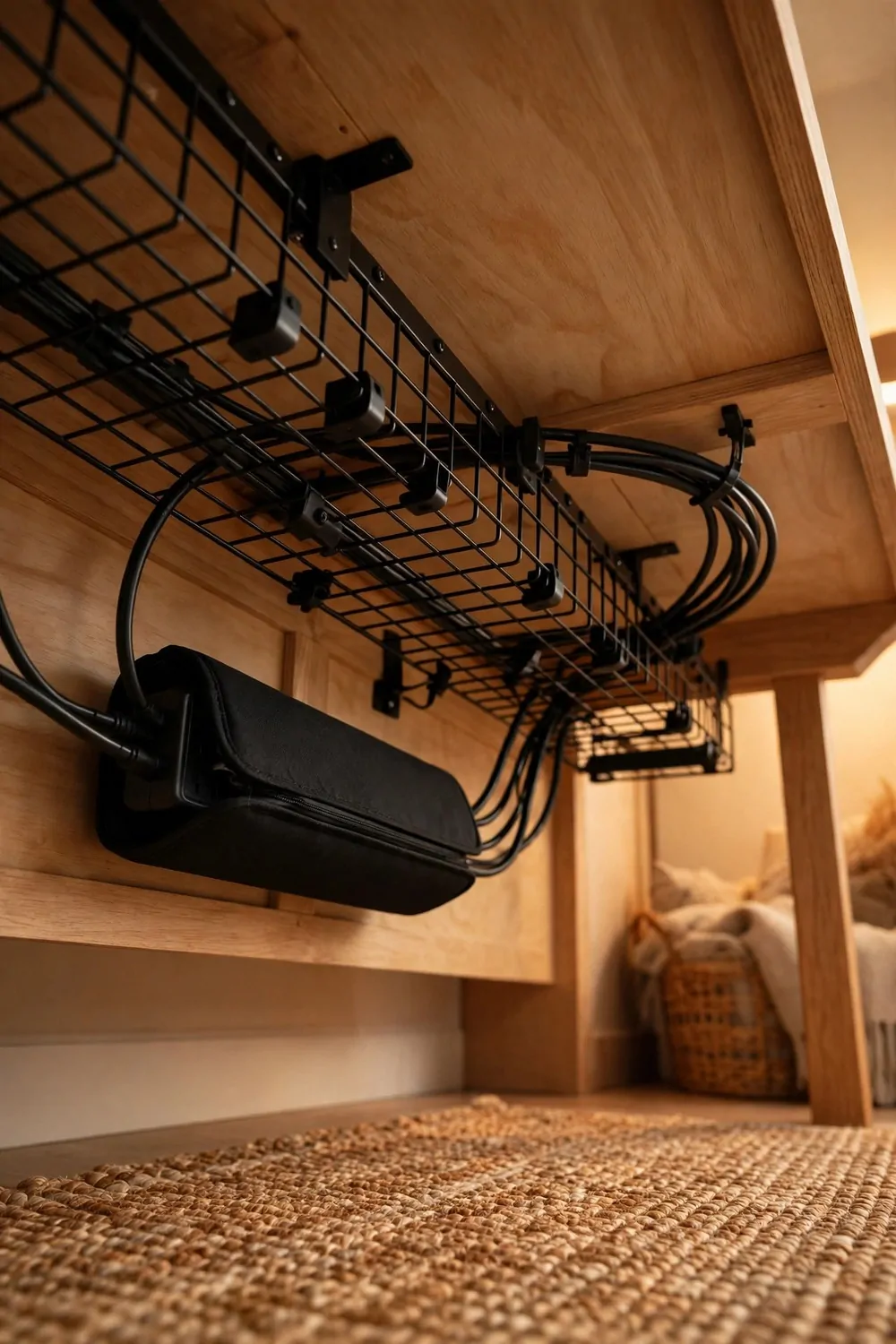
Cables on the floor are a trip hazard, a tangle risk, and a mess on camera. One kicked cable can unplug your camera mid-stream, and your viewers watch you vanish while you crawl under the desk.
Run every cable along one path. Pick a route from the desk to the wall, and keep all the cables on it. A single tidy path is easy to check, easy to fix, and easy to keep clear.
Use a cable tray under the desk and clips along the desk leg. The tray holds the slack, the clips hold the line, and the floor stays empty. Nothing dangles, nothing swings, nothing gets caught on a chair wheel.
Buy cables in the right length. A two meter cable where thirty centimeters would do is a coil of mess waiting to happen. Short cables lie flat, stay out of sight, and never tangle.
Label both ends of every cable with a small tag. When something stops working mid-stream, you find the right cable in seconds instead of pulling them all out and guessing. Labels feel fussy until the day they save your show.
Keep power cables and mic cables a few inches apart. Power cables can hum into audio cables when they run side by side for a long stretch. A little space between them kills the hum before it starts.
Check the cable path once a month. Cables creep. A tidy tray in January is a tangle by March. Two minutes of tidying keeps it clean, and clean cables stay out of your way when it matters.
A clear floor is a calm studio. Nobody trips, nothing unplugs, and the camera never sees a snake pit under your desk.
12. The Soft Light Behind You
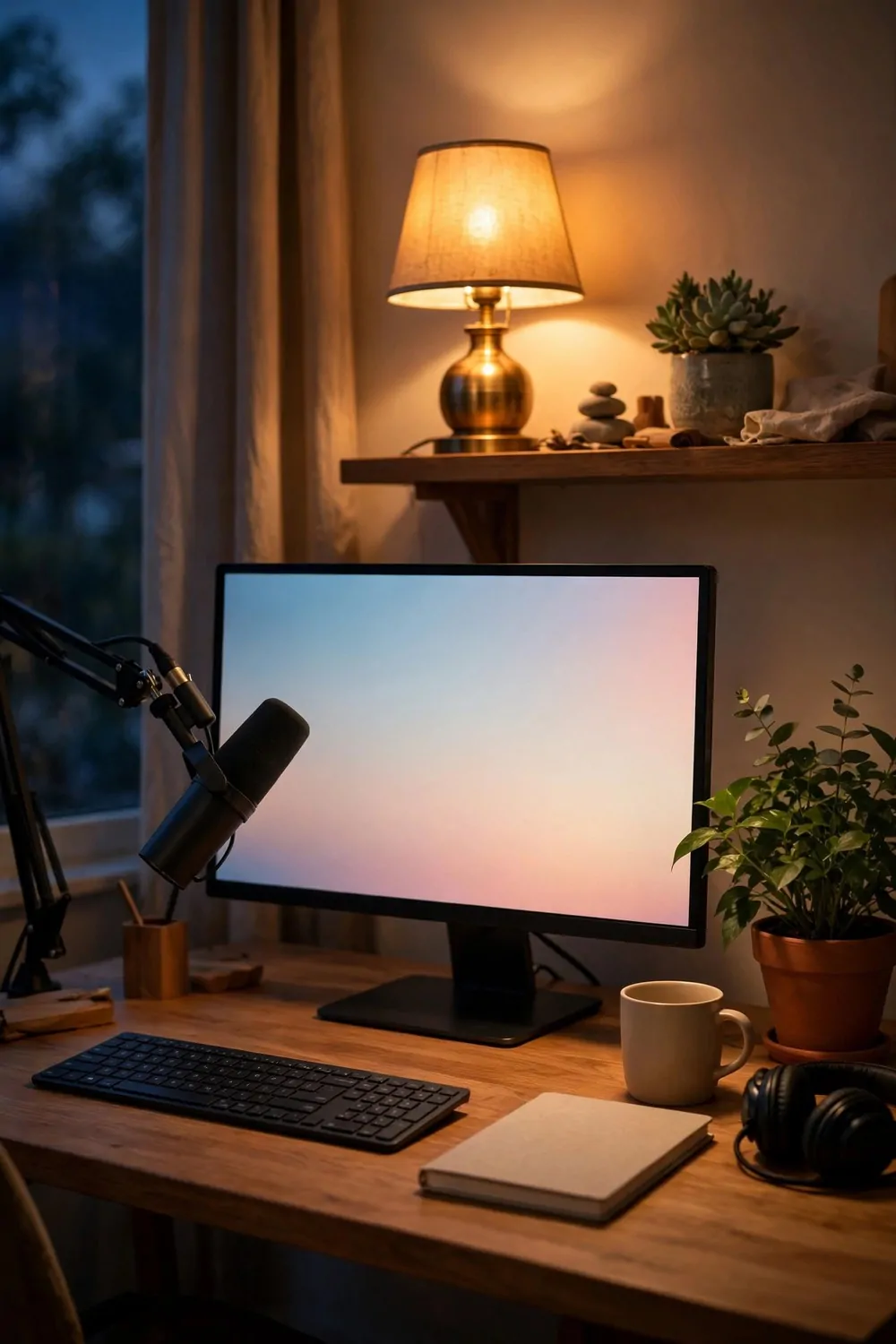
A face lit well with a dark room behind it looks like a floating head. A little soft light behind you gives the frame depth, and your viewers feel the room instead of just the face.
Put one warm lamp behind you, off to one side, out of the direct frame. It lights the backdrop gently and separates you from the wall. You pop forward, the room falls back, and the shot gains depth.
Keep the back light dimmer than the key light. If the back light is brighter, it fights your face for attention. A soft glow is enough. You want a hint of warmth, not a second spotlight.
A string of warm lights along a shelf works beautifully for this. They glow softly, they cost very little, and they turn a plain shelf into the coziest corner of the frame. One string, one shelf, and the whole backdrop warms up.
Watch for glare in glasses or on the camera lens. A light behind you can bounce off shiny surfaces and flare the shot. Move it a few inches, angle it down, and the flare vanishes.
Match the warmth to your key light. Around the same warm color keeps the whole frame feeling like one room. A cool back light over a warm key light makes the shot feel like two different places at once.
Dim your screen a touch too. A glowing monitor behind your face fights the soft lamp light and wins. Lower the brightness until the screen and the lamp sit at the same gentle level.
Soft light behind you is the difference between a webcam shot and a studio shot. One lamp, one dim setting, and your stream looks like someone designed it.
13. The Scene Switch That Hides a Mistake
Things go wrong on live streams. A doorbell rings, a child walks in, a coughing fit starts. A scene switch is your escape hatch, and it should be one button away at all times.
Build a “be right back” scene before you ever need it. A calm still image, soft music, and no camera. When life interrupts, one press hides the mess, and your viewers wait happily instead of watching chaos.
Here is what my escape scenes cover:
- The break screen, for doorbells, coughs, and surprises
- The slides-only scene, for when the camera freezes but the show goes on
- The chat-only scene, for when I need to read a long question out loud
- The ending scene, ready early so the goodbye is tidy, not rushed
Keep the break screen simple and warm. A plain color, a short friendly line, soft music. Viewers forgive a pause when the pause looks planned. They get restless when the pause looks like a crash.
Practice switching to the break screen until it is muscle memory. In a real surprise, your brain goes blank for a second, and your hand needs to know the way on its own. Ten practice presses make it automatic.
Come back with a smile and one short line. “Thanks for waiting, I am back.” No long apology, no story about what happened. Viewers came for the show, and the show is back.
Never leave the break screen up for more than a few minutes. A short pause feels professional. A long one feels like the stream died, and viewers start to leave. Fix the problem fast, or end the show cleanly.
An escape hatch is not planning to fail. It is planning to recover, and recovering well is what makes a streamer look experienced.
14. The Fan That Cools Without Being Heard
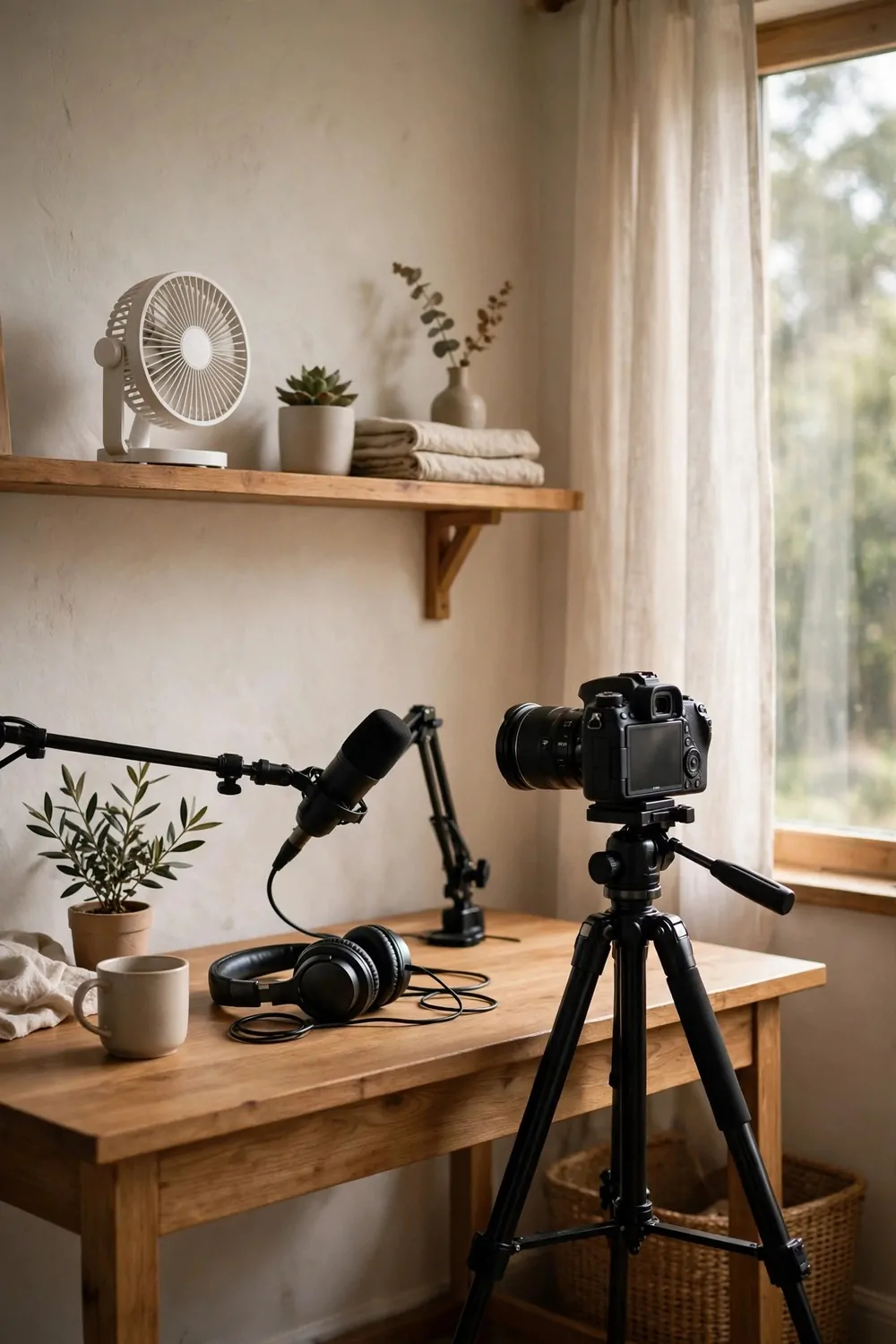
Lights are hot. Computers are hot. A small room with both gets warm fast, and a sweating streamer is a distracted streamer. A fan helps, but a noisy fan ruins your audio.
Pick a quiet fan, and put it far from the mic. Distance is the best noise killer there is. A fan across the room on low cools you fine and barely reaches the microphone. A fan on the desk blasts straight into it.
Point the fan at the wall, not at your face. Bouncing air off the wall spreads it softly around the room. Direct air dries your eyes, rustles papers, and makes your hair move on camera.
Run the fan on its lowest setting that still helps. Most fans have a quiet low speed that moves plenty of air for one person. High speed is for heat waves, not for streams, and your mic will thank you for the restraint.
Keep the fan out of the frame. A spinning fan behind you pulls eyes away from your face, and viewers watch the blades instead of listening. A fan on the floor, below the frame, cools you invisibly.
Check the fan sound with headphones before every stream. Record ten seconds with the fan on, and listen. If you hear a whir or a rattle, move the fan farther away or switch it off for the show.
Open a window a crack if the weather allows it. Fresh air cools a small room better than any fan, and it costs nothing. Close it again if street noise creeps in, and let the fan do the job instead.
Cool and quiet is a balance, and it takes one test to find it. Get the fan right once, and you stop thinking about the heat and start thinking about your viewers.
15. The Checklist You Read Before You Go Live
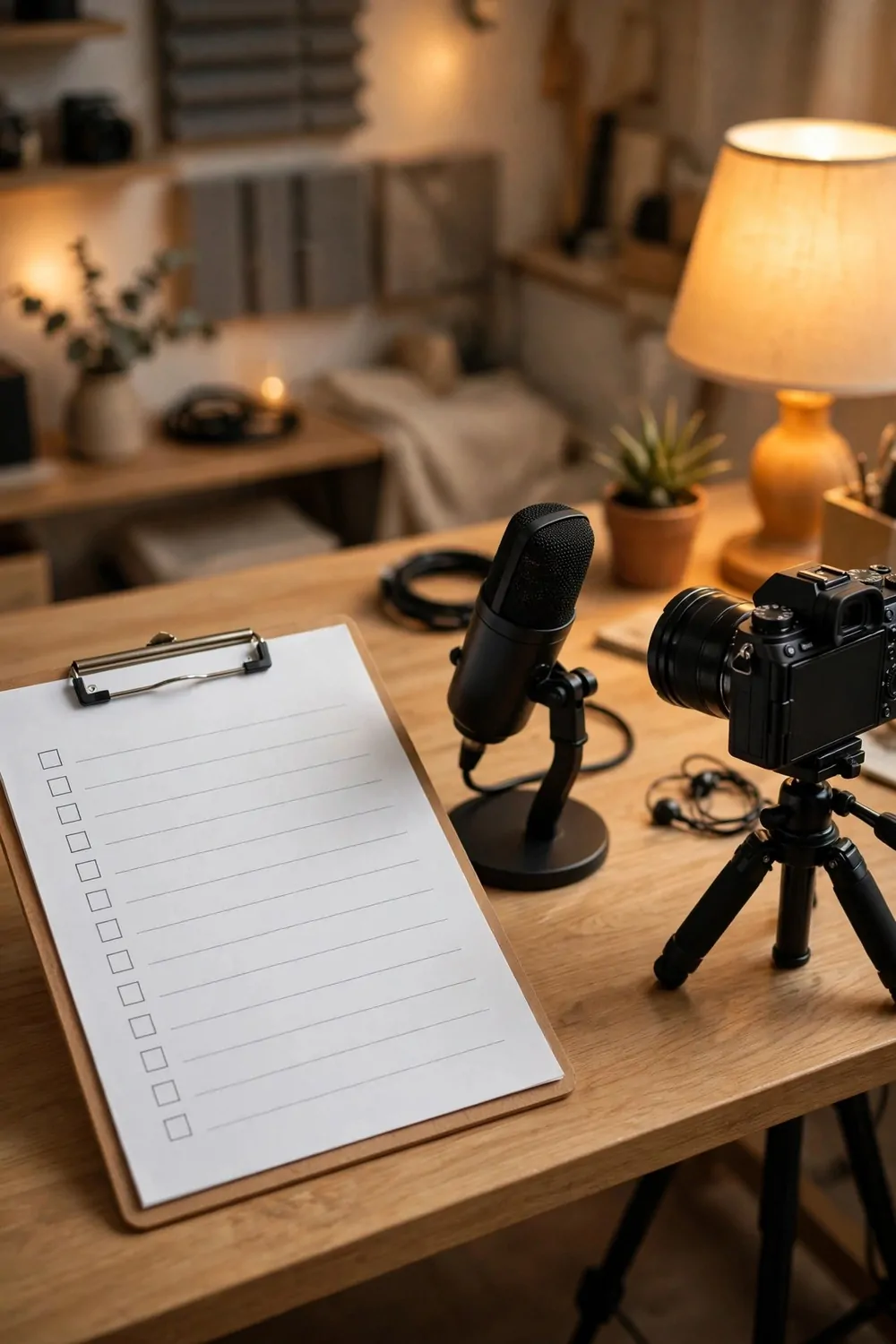
Memory fails under pressure. A checklist does not. Read the same short list before every stream, out loud, and you stop forgetting the small things that cause the big problems.
Print the list and tape it to the side of your monitor. A paper list beats a phone note, because your phone buzzes and distracts you. Paper sits still, and it is always in the same place.
Here is the checklist I read before every single stream:
| Check | What I look for | If it fails |
|---|---|---|
| Connection | Ethernet cable plugged in, stream health steady | Reseat the cable, restart the router |
| Sound | Ten seconds of silence, clean on headphones | Find the hum, close the door |
| Light | Key light steady, no flicker on a test clip | Swap the bulb, dim the lamp |
| Frame | Camera at eye level, backdrop tidy | Move the tripod, clear the shelf |
| Scenes | Keypad switches every scene cleanly | Reopen the software, test again |
| Chat | Second screen shows live chat | Refresh the page, check the login |
| Power | UPS light green, phone charged | Charge the phone, check the battery |
| Water | A glass of water in reach | Fill it now, not mid-stream |
Read it in the same order every time. Same order builds a habit, and habits survive nerves. A checklist you read differently each time is just a piece of paper.
Tick each item with a pen as you check it. The small act of ticking slows you down just enough to actually look. A list you skim is no better than no list at all.
Keep the list short. Eight items is enough. A list with thirty items never gets read, and it ends up taped to the wall as decoration. Eight checks, done properly, cover nearly every failure.
Add one line to the list when something goes wrong on a stream. A new line, in your own words, stops the same mistake twice. My list grew one line at a time, and every line was a lesson.
A checklist is the least exciting setup in this list, and the most reliable. Read it, tick it, go live. Calm, every time.
16. The Recovery Plan for When the Stream Drops
Streams drop. Even good setups, with good internet, drop sometimes. The difference between a disaster and a hiccup is a plan you made before it happened.
Write the plan down. One page, taped inside a cupboard door or saved on your phone. When the stream drops, your brain goes blank, and a written plan tells your hands what to do.
Step one is always the same. Stay calm and check the cable. Most drops are a loose cable or a router blink, and both fix in seconds. A calm check beats a panicked restart every time.
Step two is the break screen. If the stream is still up but broken, switch to it. If the stream is down, your viewers see the last frame freeze, and they wait. Either way, you buy yourself a minute to think.
Step three is the router. Switch it off, count to thirty slowly, switch it back on. Routers fix themselves more often than people admit, and thirty seconds of patience beats ten minutes of guessing.
Keep your phone ready as a backup connection. A phone hotspot will not carry a perfect stream, but it carries a watchable one, and a watchable stream beats a dead one. Know where the hotspot switch is before you need it.
Tell your viewers what happened when you come back. One short honest line is enough. “My connection dropped, I am back now.” People are kind about drops when they know you are back and steady.
End the show cleanly if the drops keep coming. Three drops in one hour is a sign to stop, rest, and try another day. Viewers respect a clean ending far more than a fourth freeze.
After the stream, write down what happened. One line in your notebook. “Dropped at 8:20, router restart fixed it.” The note turns a bad night into a lesson, and the lesson stops the next bad night.
A recovery plan does not stop drops. It stops drops from becoming disasters, and that is all any live streamer can ask for.
That is all sixteen. Sixteen setups, and not one of them needs a big budget or a builder. A cable, a second screen, a steady light, a quiet room, a checklist on the wall.
You do not need to build all sixteen this weekend. Pick three. The wired connection, the test stream, and the checklist. Those three alone will make your next live show calmer than your last one.
Then add one more next week. Slow setup beats fast setup every time, because slow setup stays. Fast setup ends up in a box in the storage room by winter.
Save the setups you love. Start with the one that made you nod. Your streams do not need a bigger room or a bigger budget. They need a steady connection, a quiet corner, and a plan for the day things go wrong.