How to Organize My Phone for Productivity
I used to pick up my phone to check the weather. Twenty minutes later, I would look up from a video about how bridges are built. I never did check the weather.
Sound familiar? It is not that I have no willpower. It is that my phone was set up to pull me in. Every app on the first screen had a red dot. Every swipe showed me something bright and fun. My phone was built around what apps want, not what I want.
And we pick up our phones a lot. A survey by Reviews.org found that Americans check their phones about 205 times a day. That is almost once every five minutes we are awake. Over 80 percent check within ten minutes of waking up.
With that many pickups, the way your phone is laid out matters. Each pickup is a small choice. If the easy choice is a game or a feed, that is what you will pick. If the easy choice is your calendar or notes, you will pick that.
So in this post, I will not just tell you to “use your phone less.” I will help you look at how you really use it, then redesign it around the habits you want, then test it with a simple experiment. It is how I got my phone to work for me again.
Your Home Screen Might Be Encouraging Bad Habits
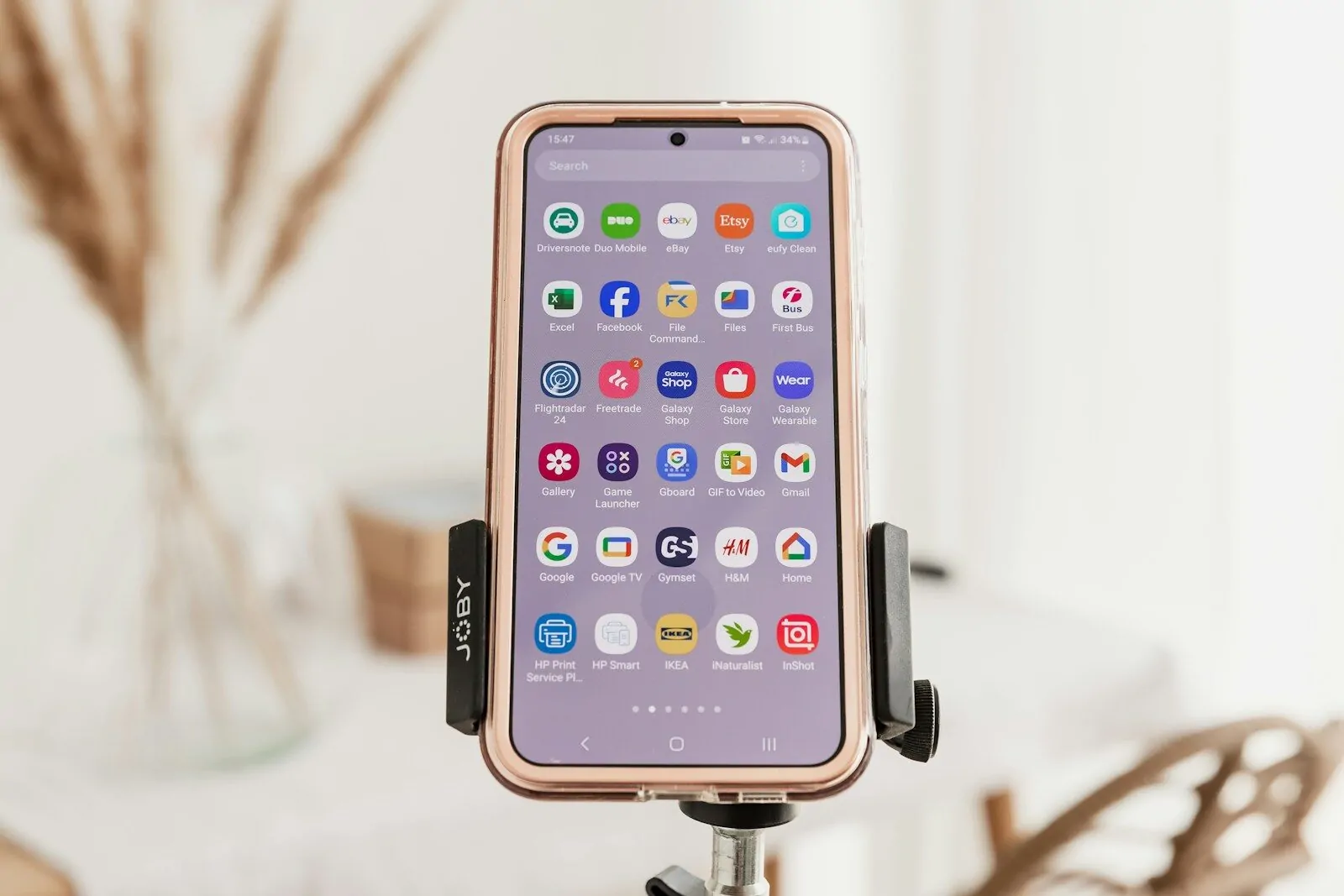
Look at your home screen right now. What are the first four apps your thumb can reach?
For many people, it is something like social media, a video app, email, and a game. These apps are made by very smart teams whose job is to keep you in the app. Bright colors. Red badges. Endless scroll.
When those apps sit in the best spot, you open them without thinking. Your thumb just goes there. It becomes a habit loop. Pick up, tap, scroll.
The phone itself is part of the problem, too. In a 2017 study, Adrian Ward and his team at the University of Texas at Austin tested about 520 smartphone users. People did worse on memory and focus tests when their phone was on the desk, even face down and silent. They did best when the phone was in another room.
So just having it close takes a bit of your focus. That is why the layout matters. If you can’t always put it away, you can at least make it less tempting.
The good news? You set up your home screen. Which means you can change it in 15 minutes.
Start by Finding the Apps That Steal Your Attention
This is your behavior audit. Before you move a single app, find out what you really do with your phone.
Both iPhone and Android have a built in report. On iPhone, it is Screen Time in Settings. On Android, it is Digital Wellbeing in Settings. Open it and look at three things:
- Total time per day. Just see the number. Don’t judge it yet.
- Top apps by time. Which five apps eat the most time?
- Pickups and notifications. How often do you pick up the phone? Which apps send the most alerts?
Now make two lists on paper.
List A: Apps that help me. These are apps you open on purpose, get what you need, and close. Calendar, maps, notes, bank, messages with family.
List B: Apps that pull me. These are apps you open “for a second” and lose time in. Feeds, video apps, games, shopping, and for some people, email.
Be honest. Some apps can be on both lists. For me, messages helps when I text my wife, but pulls when I get lost in a group chat. That is fine. Just note it.
These two lists are your map for the redesign.
Give Your Most Important Apps the Best Real Estate
Now the redesign starts. The best spot on your phone is the space your thumb reaches without stretching. For most people, that is the bottom row and the lower middle of the screen.
That spot should go to List A. The apps that help you.
Here is how I set up my first screen:
- Bottom dock: phone, messages, camera, and calendar. The things I need most, every day.
- Lower middle: notes, maps, task list, and my bank app.
- Top of the screen: a calendar widget that shows my next event, and the weather.
- Nothing else. The rest of the screen is blank.
Yes, blank. A blank screen is calm. It does not shout at you. When I open my phone now, I see my day, not a wall of icons.
Try to keep your first screen to 12 apps or fewer. If you need more, that is what the second screen is for.
One more tip. Pick a calm wallpaper. A plain color or a soft photo. A busy wallpaper makes icons harder to see and adds noise.
Create a Second Screen for Less Frequent Tools
Some apps you need, just not every day. The pharmacy app. The parking app. The airline app. A scanner. These go on the second screen.
The second screen is like a toolbox in the closet. You know where it is. You open it when you need a tool. But it is not sitting on the kitchen table.
I sort my second screen into a few folders, each named for a type of task:
- Money: bank, bills, and budget apps.
- Travel: ride apps, airline, and maps for trips.
- Health: pharmacy, doctor portal, and fitness.
- Home: smart home, delivery, and shopping lists.
- Tools: scanner, calculator, and settings.
If an app does not fit on screen one or two, ask if you need it at all. On iPhone, you can move it to the App Library and off your home screens. On Android, you can keep it in the app drawer only. It is still there. It is just out of sight.
Stop Letting Notifications Decide What You Do
Every notification is someone else asking for your time. Some are worth it. Most are not.
The research here is clear. In a 2015 study at Florida State University, Cary Stothart and his team found that just getting a phone alert, without even looking at it, hurt people’s focus on a task. The hit to focus was about as bad as if they had picked up the phone to use it.
And in a 2016 study, Kostadin Kushlev, Jason Proulx, and Elizabeth Dunn had 221 students switch alerts on for one week and off for another. When alerts were on, students reported more trouble paying attention and more restless, hyper feelings.
The same Reviews.org survey found 76 percent of people check their phone within five minutes of getting a notification. So each ping really does pull us in.
Here is how I sort my notifications:
| Keep On | Turn Off |
|---|---|
| Calls and texts from people | Social media likes and comments |
| Calendar reminders | Shopping deals and sales |
| Bank and security alerts | News alerts (I check news on purpose) |
| Ride and delivery updates when active | Game rewards and streaks |
Go to your settings and turn off every alert that is not on the “Keep On” list. It takes ten minutes. And it may be the best ten minutes you spend this week.
Also look into Focus on iPhone, or Do Not Disturb and Modes on Android. You can set one for work, one for sleep, and one for family time. Each one lets only certain people and apps through.
Build App Groups Around Real Life Activities
Most phones sort folders by app type. “Social.” “Productivity.” “Entertainment.” But that is not how you live your day.
You don’t think, “I need a productivity app.” You think, “I need to plan dinner,” or “I need to get to work.”
So I build my folders around what I am doing:
- Morning: weather, news (once), and my podcast app.
- Commute: maps, transit, and music.
- Cooking: recipe app, shopping list, and a timer.
- Kids: school app, class group chat, and the shared family calendar.
- Wind down: reading app and a sleep sounds app.
Now when I want to cook, I open one folder, and all I need is there. No hunting. No getting lost in a feed along the way.
Your groups will look different. Think about the four or five things you do most each day, and make one folder for each.
Hide Distractions Without Deleting Everything
You don’t have to delete every fun app. I still use social media. I still watch videos. I just don’t want them to grab me ten times a day.
The trick is to add a bit of friction. Make the fun apps a little harder to reach. Here are my favorite ways:
- Move them off the home screen. Open them by search only. Typing the name is a small pause that makes you think, “Do I really want this?”
- Log out after each use. Having to log back in is a good speed bump.
- Use app limits. Set a daily time limit in Screen Time or Digital Wellbeing. When time is up, the app locks.
- Try grayscale. Turn your screen to black and white. Bright colors are part of what makes apps fun to tap.
That last tip has research behind it. In a 2020 study, Alex Holte and Richard Ferraro at the University of North Dakota had college students switch their phones to grayscale. Their daily screen time dropped by about 38 minutes on average. Most of the drop was in social media and web browsing.
You can find grayscale in the accessibility settings on both iPhone and Android. Some people set a shortcut to turn it on and off fast.
Create a Quick Access Area for Everyday Tasks
Some tasks you do many times a day. Jot a note. Set a timer. Turn on the flashlight. Pay at a shop. Scan a code. These should take one tap, not five.
Your phone has a few spots for this:
- Lock screen shortcuts: both iPhone and Android let you add quick buttons to the lock screen, like camera, flashlight, or notes.
- Control Center or Quick Settings: the panel you swipe down or up. Add the tools you use most, like timer, scanner, and do not disturb.
- Widgets: small boxes on your home screen. A notes widget lets you start a note with one tap. A calendar widget shows your next event.
- Back tap or gestures: some phones let you tap the back of the phone to open an app or run a shortcut.
My favorite is a notes shortcut on my lock screen. When a thought pops up, I can catch it in two seconds, without opening the home screen and getting lost in my phone. It keeps my head clear and my phone time short.
What Should Never Live on Your First Screen?
Here is my simple rule. If an app makes money from your time, it does not get the first screen.
That means:
- Social media apps. Feeds are built to keep you scrolling.
- Short video apps. Same idea, but even faster.
- Games. Especially ones with daily rewards and streaks.
- Shopping apps. They are built to tempt you.
- News apps. Read the news on purpose, not every time you pick up your phone.
And for many people, I would add email to this list. Email is not fun, but it is a huge pull. One look, and you are working at 10 PM. If your job does not need you to answer email within minutes, move it to the second screen.
None of this means these apps are bad. It just means they should be a choice, not a reflex.
Try a 24 Hour Low Distraction Experiment
Here is the experiment part. Don’t just take my word for it. Test it on yourself.
Pick one normal day, like a Tuesday. For 24 hours, try this setup:
- Only List A apps on your first screen.
- All List B apps off the home screens. Open them by search only.
- All notifications off, except calls, texts from people, and calendar.
- Grayscale on.
- Phone out of the bedroom at night. Use a cheap alarm clock.
At the end of the day, check your Screen Time or Digital Wellbeing again. Compare it to a normal day. Then ask yourself three questions:
- How did my focus feel today?
- Did I miss anything that really mattered?
- Which change helped most?
When I did this the first time, I was shocked. I did not miss a single thing that mattered. And I read half a book that I had been “too busy” for.
You may not keep every change. That is fine. Keep the ones that helped, and drop the rest. The goal is to learn what works for you.
The 15 Minute Phone Reset
Once you know what works, you can set it all up in one go. Here is my 15 minute reset. I do it once every couple of months.
Minutes 1 to 3: Open Screen Time or Digital Wellbeing. Look at your top apps for the past week.
Minutes 4 to 6: Delete any app you have not opened in a month.
Minutes 7 to 9: Fix your first screen. Only List A apps. Move anything else.
Minutes 10 to 12: Check notifications. Turn off any new ones that crept back in.
Minutes 13 to 15: Clean up your folders and quick access tools. Check that your Focus modes still fit your week.
That is it. Fifteen minutes, and your phone feels new again.
New apps love to turn their alerts on by default, so this reset is mostly about catching what slipped in since last time.
Keep It Organized Without Constantly Rearranging It
Here is a warning. It is easy to get hooked on rearranging your phone. New icons. New wallpapers. New folders. I have spent whole evenings on this.
But a phone setup only works if your thumb learns it. Every time you move things around, your thumb has to learn again. So once you have a layout that works, leave it alone.
A few rules that help me:
- New apps go to the App Library or app drawer first. They earn a spot on the home screen only if I use them a lot.
- One in, one out. If a new app gets a spot on screen one, an old one has to move.
- Only redesign during the reset. Not on a random Tuesday when I am bored.
Your phone should feel like a good kitchen. Each tool has its spot. You can find it in the dark. And you don’t have to think about it.
That is the real goal. Not a pretty phone. A phone that helps you do what you meant to do when you picked it up.
FAQs
How many apps should be on my home screen?
Try to keep it to 12 or fewer, plus the dock. Use those spots for the apps you open on purpose every day, like calendar, notes, and maps. Everything else can live on a second screen or in the app library.
Should I delete social media to be more productive?
You don’t have to. Moving social apps off your first screen, turning off their alerts, and setting a daily time limit often helps a lot. If that is not enough, you can delete the app and use the website instead.
Does grayscale mode really help?
For many people, yes. A 2020 study from the University of North Dakota found that students who switched to grayscale cut their daily screen time by about 38 minutes. It is free and easy to try for a day.
Which notifications should I keep on?
Keep alerts from real people, like calls and texts, plus calendar reminders and bank or security alerts. Turn off likes, deals, game rewards, and most news alerts.
How often should I reorganize my phone?
Not often. Do a 15 minute reset every month or two to clean up new apps and alerts. Between resets, try not to move things, so your thumb can learn where everything is.